How to Relight a Photo with AI
Versein Team · Updated
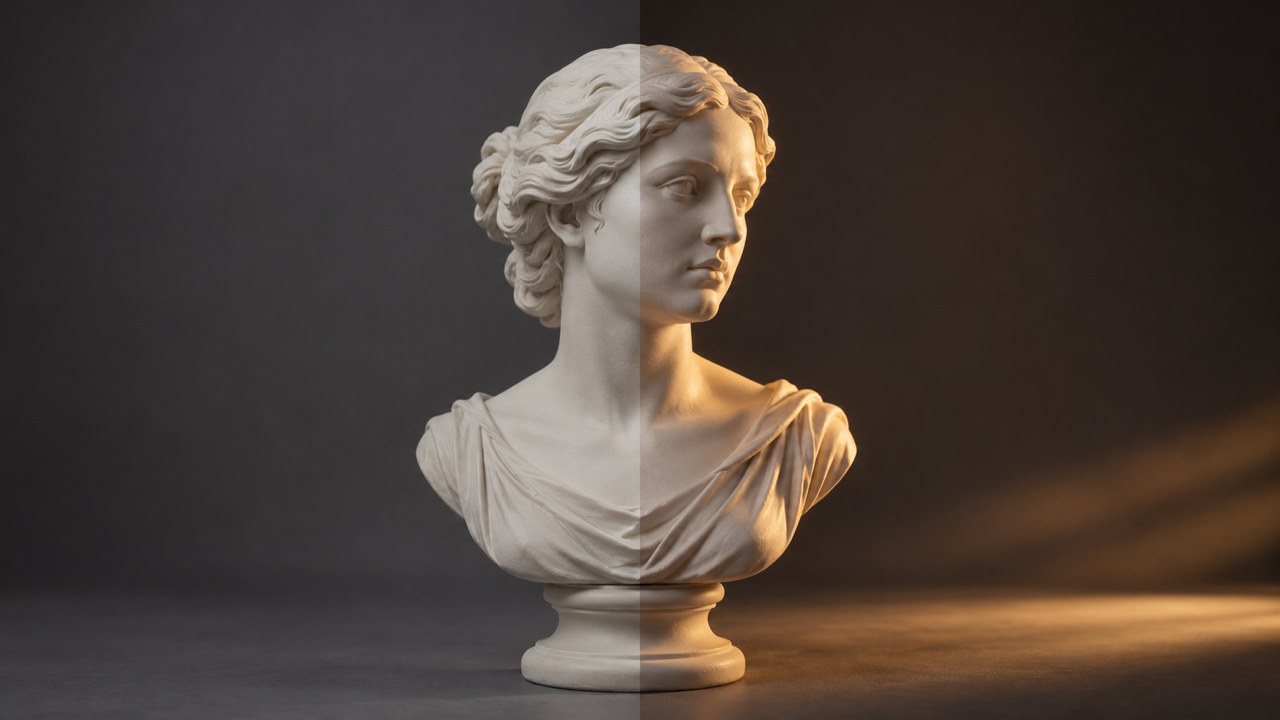
To relight a photo with AI, upload the sharpest, best-exposed version you have, then describe the light you want with a preset, a few words about direction, warmth and softness, or a reference image. Compare the result with the original at full size, keep the version that fits, and upscale only after that. VerseIn's AI Image Relight follows this flow, and its page says the subject, pose and composition stay as they were.
Key Takeaways
- Think of light as three settings you can change after the shot: where it comes from, how warm it is and how hard it falls.
- Start from your sharpest, best-exposed photo. The relight page says a relight cannot recover a blown-out face or one buried in noise.
- Ask for plausible changes, such as moving a window light from one side to the other. Big jumps, like indoor light to hard beach sun, force the tool to invent more.
- Generate two or three looks, check skin, shadows and edges at full size, and relight before you retouch or upscale.
Lighting basics in 60 seconds
You don't need studio training to write a good relight prompt, but a few terms help you ask for exactly what you want.
Key, fill and backlight
A standard setup called three-point lighting uses three lights. The key light "shines directly upon the subject and serves as its principal illuminator," the fill "balances the key by illuminating shaded surfaces," and the backlight adds a rim that "separates the subject from the background," according to Wikipedia's article on three-point lighting. When you describe light coming "from the left," you are really describing the key light.
Hard and soft light
Soft light "tends to 'wrap' around subjects, producing shadows with soft, fuzzy edges," while hard light comes from a source that is "relatively small compared to the subject," per Wikipedia's article on soft light. Softness depends on the size of the source, its distance and any diffusion.
Color temperature
Color temperature is measured in kelvins (K). In artistic terms, light above 5,000 K reads as cool and bluish, and lower values read as warm and yellowish. Wikipedia's color temperature table lists a candle flame or sunset at about 1,850 K, studio lamps at 3,200 K and overcast daylight at 6,500 K.
Golden hour, shortly after sunrise or before sunset, is when daylight "is redder and softer" and shadows are longer, according to Wikipedia's golden hour article.
| What to ask for | Lighting term | Effect |
|---|---|---|
| "Light from the left" | Key light direction | Sets which side of the face or product is bright and which falls into shadow |
| "Brighten the shadow side a little" | Fill light | Opens up dark areas without changing the main direction |
| "Soft rim of light behind the subject" | Backlight | Separates the subject from the background |
| "Soft, diffused light" | Soft light | Gentle shadows with fuzzy edges |
| "Hard, direct light" | Hard light | Crisp, dark shadows with sharp edges |
| "Warm sunset tone" | Low color temperature | Orange, yellow cast |
| "Cool daylight" | High color temperature | Bluish, neutral-to-cool cast |
How to relight a photo in 3 steps
The steps below match the three steps on VerseIn's AI Image Relight page.
Step 1: Upload the photo
Open AI Image Relight and drop in your file or choose one. Use the sharpest, best-exposed version of the photo you have. The page is direct about the limit here: a relight cannot recover a blown-out face or one buried in noise. If you have several frames of the same shot, pick the one with the most detail in the face or product.
Any image in your VerseIn library can be relit, including images you generated, according to the page FAQ.
Step 2: Describe the lighting
You have three ways to tell the tool what light you want:
- A preset. The page names warm sunset, soft window light and studio as examples. It does not publish a full list, so check the tool itself for the current options.
- A few words. Write a short description covering direction, warmth and softness, on its own or added to a preset. "Soft window light from the right, slightly warm" covers all three.
- A reference image. Upload a photo whose light you want to borrow. The page says this carries over the color and direction of the light.
The page FAQ notes that realistic changes to direction, warmth and softness work best.
Step 3: Compare against the original and keep the one that fits
Put the result next to the original and look closely at three things the page calls out: skin tone, the shadows under the eyes and the edges of the subject. If something is off, adjust the description and run it again. The page says "the original is never overwritten," so you can keep trying looks without losing your starting point. Results land in your library.
Prompt examples by use case
The prompts below are starting points that use the page's presets and the three dials. They are examples of what to ask for, not results.
Portrait or headshot with harsh overhead light. For portraits and headshots, the page names harsh overhead light and color casts. Try the soft window light preset plus "light from the left at face height, gentle shadows, neutral skin tone."
Product catalog. The page describes keeping one consistent look across a catalog. Pick the studio preset, write one description such as "even, soft light from the front left, neutral color," and use the same wording for every product in the set. For more on product imagery, see how to make a product video from one photo.
Real estate or interior. The page gives warming a room shot on a gray afternoon as an example. Try "warm late-afternoon light coming through the window, soft shadows on the floor."
Generated image, midday to golden hour. The page says you can move a generated image from midday light to golden hour without regenerating it. Start with the warm sunset preset and add "low sun behind the subject, long soft shadows, warm rim light."
What relighting can and cannot fix
According to the page, the tool estimates the shape of the scene and redraws the light on it, so broad changes hold up better than fine detail.
Where the page says it is convincing: broad changes, such as the direction of the key light, overall warmth and how deep the shadows are. It lists rescuing flat photos from overcast days or flat flash, matching a set of pictures and borrowing light from a reference.
Where the page says it is weaker: small, precise details, such as the exact reflection in an eye or caustics, the bright patterns light makes when it passes through glass. Check these at full size.
Plausible versus invented light. Moving a window light from left to right is believable. Turning an indoor portrait into hard noon sun on a beach means inventing a whole environment, and the page warns that edges and skin tone get reinvented along the way.
Exposure problems. A relight cannot recover a blown-out face or one buried in noise, so pick a better-exposed frame or reshoot.
Tips for natural-looking light
- Keep the change plausible. Ask for light that could have existed where the photo was taken.
- Use one look across a set. Reuse the same preset, words or reference image for every photo in a catalog or social grid.
- Generate two or three looks. The page suggests comparing a few before picking one.
- Relight before you retouch or upscale. That is the order the page gives.
- Check skin and edges at full size. Small problems hide in thumbnails.
What to do after you relight
Upscale. The relight page says "Enlarge after you relight." AI Image Upscaler offers 2x and 4x, and results stay in your library. To compare image upscalers, see AI image upscalers compared. For clips, see AI video upscalers.
Animate it. Use the relit photo as the first frame or subject reference in Image to Video. For older pictures, see how to turn an old photo into a video.
Relight a clip. AI Video Relight does the same job for video, and its page says subject, motion and camera work stay untouched.
FAQ
Will AI relighting change my face?
The VerseIn page says the tool won't change faces or clothes by design. It still suggests comparing the result with the original at full size, especially around skin tone and the edges of the subject.
Can I relight a product photo?
Yes. The page says the tool works on portraits and product shots, and lists a consistent look across a catalog as one of its uses.
Can I match the lighting of another photo?
Yes. Upload a reference image whose light you want to borrow. The page says the relight takes its color and direction from that reference.
Can AI fix an overexposed photo?
Not if detail is gone. The page says a relight cannot recover a blown-out face or one buried in noise, so start from the best-exposed version you have.
How much does relighting cost?
Relighting uses the same credits as the rest of VerseIn, and the page says the cost is shown before you submit. New accounts get free sign-up credits, and current plans are on the pricing page.
Change the light without a reshoot
Upload a photo, pick a preset or a reference image, and compare the new light with your original.