How to Turn an Old Photo into a Video with AI
Versein Team · Updated
To turn an old photo into a video with AI, start by getting the print into a clean digital file. Then open the Old Photo Revival template on VerseIn, upload the portrait and press Generate. The template is built to bring an old portrait back to life with a warm vintage reveal.
Key Takeaways
- Start with a clean digital copy of the print: scan it or photograph it flat, in even light, with no glare.
- The upload hint asks for one thing, a clear portrait photo.
- Select the template, upload the photo and generate. The clip lands in your Media library.
- Share it as an AI animation, not real footage, and check with family before posting a relative's photo.
What an Old Photo Revival video looks like
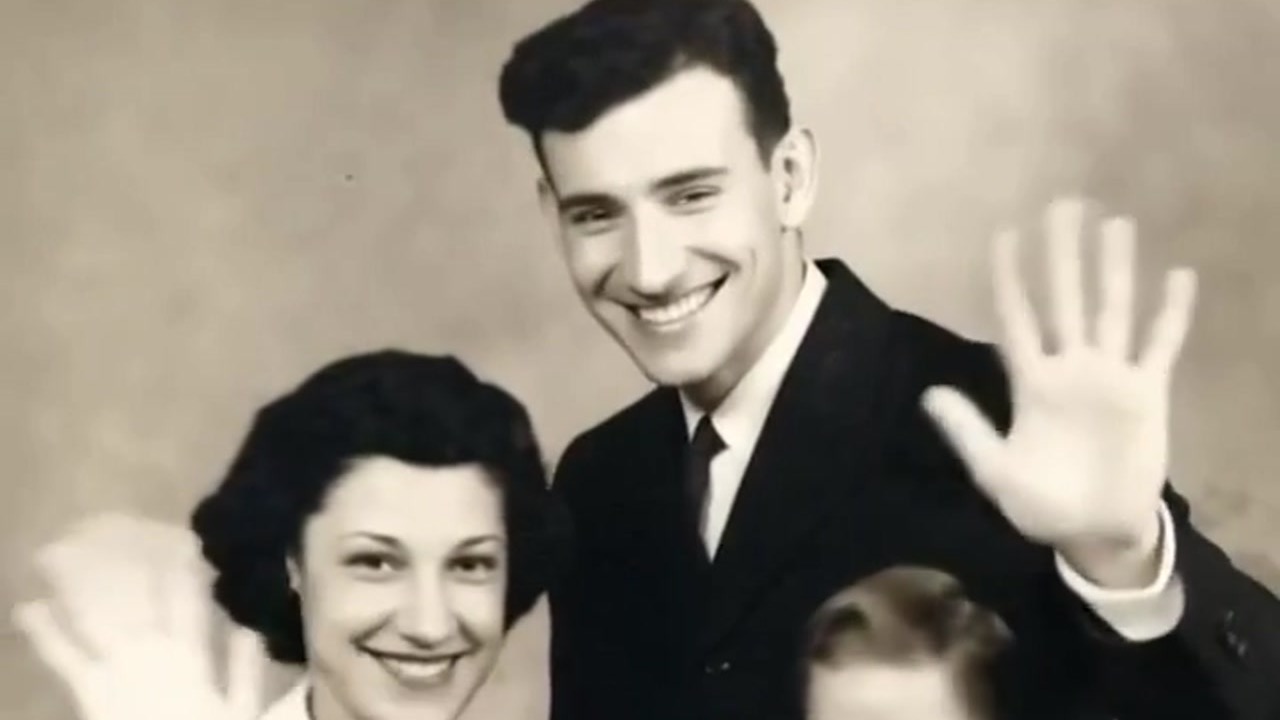
The Old Photo Revival template page describes the template as a way to bring an old portrait back to life with a warm vintage reveal. The example clip on that page uses two different old photos.
The first is a sepia studio portrait of a family: a smiling woman in a tailored jacket, a man in a dark suit and tie behind her, and a small boy in dark overalls on a patterned seat. All three end up smiling and waving at the camera.

The second photo shows a young woman with curled dark hair in a light blouse beside a young man in a white sailor cap and navy uniform. Both of them smile, and she waves.

The movement in the example is small and friendly, smiles and waves rather than big action, which suits the kind of portraits families keep in albums and shoeboxes.
How to digitize an old print
If your photo only exists on paper, you need a digital copy before you can upload it. A few suggestions for getting a clean one:
- Use a flatbed scanner if you have one. It holds the print flat and lights it evenly.
- Or photograph the print flat. Lay it on a table and hold your phone straight above it, parallel to the photo, so the edges stay square.
- Shoot in even daylight. Soft window light, out of direct sun, tends to light the whole print the same way.
- Watch for glare. Glossy prints and photos behind glass reflect light. Take the print out of its frame if you can, and if a bright patch appears, move the photo or the light rather than tilting your phone.
- Fill the frame, without cutting off any edge.
- Straighten and crop. Use your phone's photo editor to rotate the image level and trim away the table, album page or frame around it.
What photo to upload
The template's upload hint says "Upload a clear portrait photo." That's the only requirement listed, so a clear, well-lit copy is the main thing you can control.
| Works well | Avoid |
|---|---|
| A portrait where every face is easy to see | Faces that are tiny, far away or partly cut off |
| A sharp scan or a straight, flat phone shot | Photos taken at an angle, with skewed edges |
| Even light across the whole print | Glare, reflections or the shadow of your phone |
| The photo cropped right to its edges | Table, frame or album page showing around it |
How to turn the photo into a video, step by step
- Select the Old Photo Revival template.
- Upload your photo (click on the web, tap in the app).
- Generate and post.
All three steps work the same whether you're in a browser on the VerseIn web app or holding a phone with the VerseIn app for iOS or Android.
Step 1: Select the Old Photo Revival template
Follow the template page link above, or find Old Photo Revival among the trending templates. If you're new to VerseIn, create an account first.
Step 2: Upload your photo (click on the web, tap in the app)
Pick the cropped, straightened file from the digitizing step. Before you continue, run it past the table above one more time. If something looks off, fix the crop and upload again.
Step 3: Generate and post
Start the generation with the Generate button, then confirm it. Once it finishes, the clip is saved to your Media library, ready to post.
Tips for choosing the photo
You may want to try more than one portrait. Some ideas:
- Start with your clearest copy. If you have several prints of the same portrait, use the one with the least fading, creasing or spotting.
- Look for a classic studio pose. The family in the example faces the camera, which keeps everyone in view.
- Skip heavy edits before uploading. Strong filters or face-smoothing apps can change how people look, so a plain copy may keep your relatives looking like themselves.
- Not happy with a result? A sharper or better-lit print is an easy thing to try.
Optional: upscale first, or write your own motion
Two other VerseIn tools can fit into this workflow:
- If your scan is small, run it through the AI Image Upscaler before animating it. The tool upscales images, which can help when your only copy is a small file.
- If you want to describe the motion yourself, use Image to Video, where you write your own motion prompt instead of using a template.
Share old family photos with care
Old portraits often show relatives who have passed away, and people can feel strongly about seeing them move. A few things to keep in mind:
- Get the family's okay. When the portrait shows someone other than you, or belongs to another branch of the family, talk to those relatives before you upload or share it.
- Label it honestly as an AI animation in the caption.
- Choose the right audience. For some photos, a private message to family may feel better than a public post.
More templates to try
- Turn Us Into Toys: each person in the photo keeps their own face on a toy-style figure, and it accepts one person or a small group.
- 3D Figurine: your selfie appears as a small chibi doll standing on an open hand.
- Figurine Me Up!: one person becomes a collectible-style action figure.
- Trending templates: the category where Old Photo Revival is listed, with more photo-to-video ideas.
FAQ
Does Old Photo Revival cost credits?
Each revived portrait spends credits, and the full price appears on screen before you confirm anything. If you just signed up, your account comes with free credits you can use toward it. Should a run fail through a processing error, a timeout or a content safety check, those credits are refunded on their own. Exports carry no watermark on paid plans, which are listed on the pricing page.
Can I use a photo with more than one person?
The hint just says "portrait photo," but the example clip includes a family of three and a couple, so group portraits do appear in it. If you try one, the same checks from the table above apply to every face.
Do I need a scanner?
No. The template asks for a clear portrait photo, not a scan. A careful phone photo of the print, following the digitizing suggestions above, is a reasonable place to start.
Is the video real footage of the people in the photo?
No. It's an AI animation made from a single still photo, so the movement is generated, not recorded. Make that clear when you share it.
Bring an old portrait back to life
Upload one clear portrait photo to Old Photo Revival and get a warm vintage reveal of the people in it.