Best AI Video Upscalers in 2026
Versein Team · Updated
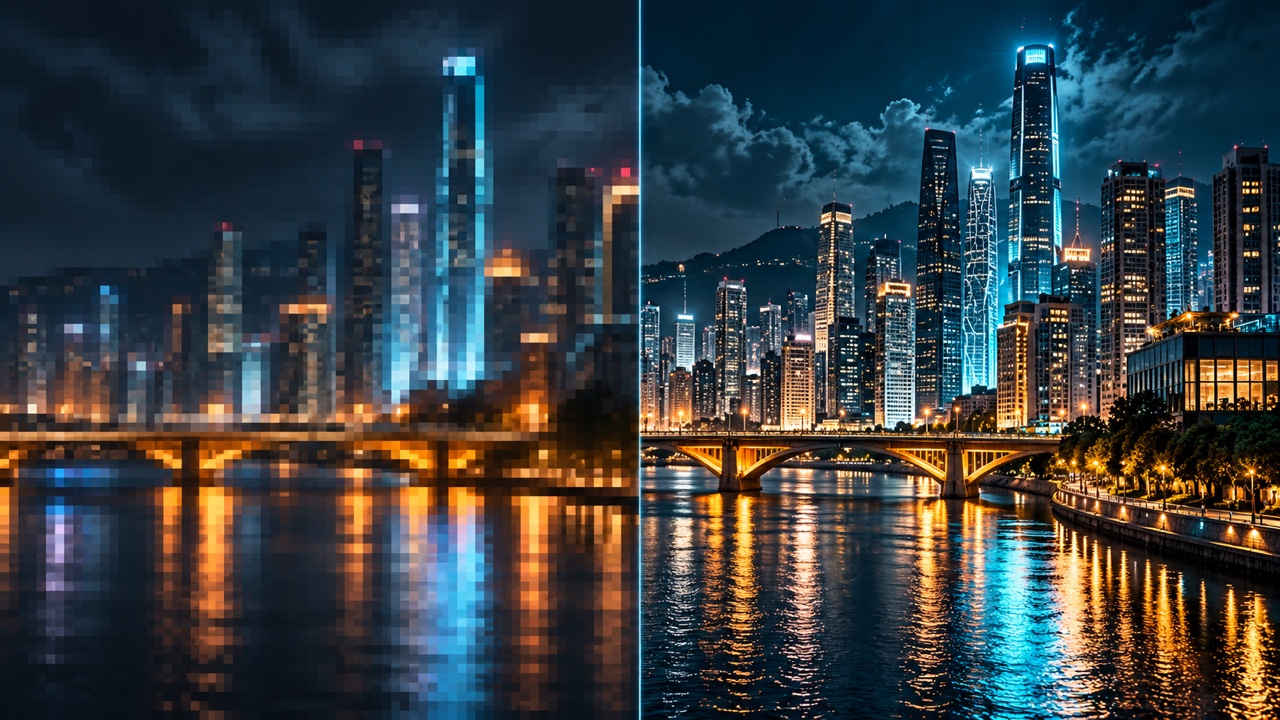
The right AI video upscaler depends less on the biggest number on the box and more on your input. Ask how long and how large the file is, what resolution it starts at, and whether you want the tool to add new detail or stay close to the original. Desktop apps like Topaz Video, HitPaw VikPea and AVCLabs list outputs up to 8K or beyond, while browser tools skip the install, and several, such as Adobe Firefly and TensorPix, publish input limits. This guide compares max output, input limits, free options and prices at the time of writing, and points out where a headline spec hides a per-model cap.
Key Takeaways
- Check the cap of the model you will actually use, not only the headline. Krea, for example, lists output "up to 8K depending on model".
- Input limits can rule a tool out before quality does. Adobe Firefly takes MP4 clips of 5 to 20 seconds under 200MB, and TensorPix's free plan accepts inputs up to 720p.
- Some free options are preview-only or watermarked. Topaz trial exports are watermarked, and HitPaw VikPea's free version needs a license to export.
- Upscaling is a finishing step. It can sharpen soft footage, but it cannot recover text or faces that were never captured, and it enlarges compression damage.
How we chose
The facts below come from each vendor's official pages, retrieved on 2026-10-21. We did not run hands-on tests, so nothing here is a ranking from testing, and quality claims stay with the vendors who make them. Tools and groups appear in alphabetical order, which is not a ranking. Where a detail appears only in a vendor's release notes or search listing, we say it "is listed as" rather than state it flatly. Prices change often, so they are shown as listed at the time of writing. VerseIn is our own product. We include it with that disclosure and hold it to the same standard: only what its official pages say.
Quick comparison
| Tool | Max output | Input limits | Platform | Free option | Price at time of writing |
|---|---|---|---|---|---|
| Adobe Firefly Video Upscaler | 1080p or 4K | MP4, 5-20 seconds, under 200MB | Web | Not covered here | Check Adobe's plans |
| AVCLabs Video Enhancer AI | Up to 8K and 120 FPS | Not covered here | Windows, macOS (local); up to 400% upscaling; needs 16GB+ RAM | Free trial | $39.95/mo or $119.95/yr |
| CapCut | 4K (HD, UHD or 4K options) | Not covered here | CapCut Desktop | Check CapCut's pricing page | Varies by region |
| HitPaw VikPea | Up to 8K | MP4, MOV, MKV, AVI, FLV, WMV | Windows, macOS 13+, online, iOS, Android | Preview only; export needs a license | Windows $43.19/mo or $99.99/yr |
| Krea Enhancer | Up to 8K, depending on model | Not covered here | Web | Check Krea's pricing page | Basic $9/mo |
| Runway | 4K | Upscale Video app is listed as accepting up to 40 seconds | Web | Not stated whether free credits cover upscaling | Standard $12/mo billed annually |
| TensorPix | Not covered here | Free plan up to 720p input; paid up to 4K input | Web | Free-forever plan with 720p input limit | Standard $5.50/mo billed annually |
| Topaz Video | Varies by plan and model; verify the model for your target resolution | Not covered here | Windows 10/11 and macOS 12-15 (local); Topaz for Web (browser) | Free trial previews all models; exports are watermarked | $299/yr prepaid, or $33/mo ($399 annual total), at time of writing |
| VerseIn | 4K (2K or 4K targets) | Not published | Web app | Free sign-up credits | Credit-based; total cost shown before you confirm |
Browser-based upscalers
These tools need no install and work on any computer with a browser, but several set clear limits on what you can upload.
Adobe Firefly Video Upscaler: good fit for short clips with a choice of fidelity
Adobe Firefly Video Upscaler is powered by Topaz Astra and outputs 1080p or 4K. It runs on the web inside Firefly Edit Video and Boards.
Watch the limits: clips must be MP4, 5 to 20 seconds long and under 200MB. That suits short clips rather than full edits.
Why it's useful: you choose Precise or Creative enhancement, so you can decide how much the model is allowed to reinterpret the footage.
Good fit for: people already working in Adobe Firefly.
Pricing: the credit cost is not covered here; check Adobe's plans.
Krea Enhancer: good fit for picking a Topaz model in the browser
Krea Enhancer offers Topaz sub-models, including Proteus, Iris, Artemis, Nyx, Gaia and Apollo, with output up to 8K depending on the model. It can also interpolate frames to 30, 60, 90 or 120 fps.
Watch the cost: Krea's docs warn that video upscaling "can consume your compute budget quickly", so try a short clip first.
Good fit for: people who want to compare named upscaling models without a desktop install.
Pricing: the pricing page lists Basic at $9/mo.
Runway: good fit for upscaling clips you generate in Runway
Runway's pricing page lists "4K upscaling" on the Standard plan and "Unlimited 4K video upscaling" on Pro and Max. Its Upscale Video app is listed as accepting uploads up to 40 seconds, and Runway's own generations are listed as 720p with an option to upscale to 4K.
Good fit for: Runway users who want to finish their generated shots without exporting to another tool.
Pricing: Standard is $12/mo billed annually. New accounts get 125 one-time free credits, but the pricing page doesn't state whether they cover upscaling; 4K upscaling is listed from Standard.
TensorPix: good fit for a low-cost web option
TensorPix runs in the browser. Its pricing page lists a free-forever plan that accepts inputs up to 720p, with 1GB of storage and files deleted after 30 days. Paid plans accept inputs up to 4K.
Good fit for: occasional upscaling of short, low-resolution clips on a small budget.
Pricing: Standard is listed at $5.50/mo billed annually.
VerseIn: good fit for finishing generated and filmed clips in one library
VerseIn AI Video Upscaler takes a clip to 2K or 4K. It works on AI-generated and filmed footage, offers several upscaling models to compare, and saves results to your library.
How it works:
- Upload the clip, starting from the highest-quality version you have. Upscaling a heavily compressed export enlarges the compression.
- Choose a model and a 2K or 4K target. Pick the smallest jump that meets your delivery spec.
- Compare one representative clip at full size before you upscale the whole sequence.
Good fit for: creators who generate and finish clips in the same place.
Pricing: credit-based. Longer clips and bigger targets cost more credits. The pricing page says you always see the total cost before you confirm, and credits are returned automatically if a generation fails. New accounts get free sign-up credits, and paid plans export without a watermark.
Desktop-first enhancers
These apps process video on your own computer. Topaz also has a browser version, and HitPaw VikPea has online and mobile versions.
AVCLabs Video Enhancer AI: good fit for several fixes in one pass
AVCLabs Video Enhancer AI says it outputs "up to 8K and 120 FPS", with upscaling up to 400%. It runs locally on Windows and macOS and needs 16GB or more of RAM.
Why it's useful: upscaling, denoising, colorizing, face enhancement and frame interpolation can run together in one pass.
Good fit for: home video and archive projects on a capable computer.
Pricing: free trial available. Paid options are listed at $39.95/mo, $119.95/yr or $299.99 for a lifetime license.
HitPaw VikPea: good fit for task-specific fixes beyond resolution
HitPaw VikPea upscales up to 8K and accepts MP4, MOV, MKV, AVI, FLV and WMV files, with batch processing. It runs on Windows, macOS 13+, online, and on iOS and Android.
Why it's useful: besides upscaling, it has models for specific jobs, such as SDR to HDR, low-light footage, colorizing, frame interpolation and stabilization.
Good fit for: people restoring older or dim footage who need more than a resolution bump.
Free option: the free version is preview-only. Exporting needs a license.
Pricing: the purchase page lists Windows at $43.19/mo or $99.99/yr, with a perpetual license on promotion at $284.69.
Topaz Video: good fit for a wide choice of models, locally or in the cloud
Topaz Video runs locally on Windows 10/11 and macOS 12-15, and Topaz for Web runs in the browser on cloud credits. Topaz markets different output ceilings across plans and models, so a plan-level maximum does not mean every model can export at that resolution.
Watch the model caps: Topaz's current documentation lists Starlight Precise 2.6 up to 4K, while other Topaz plan pages advertise higher maximum outputs. If you need more than 4K, verify the exact model, app and plan rather than relying on the largest number on the pricing page.
Good fit for: editors who want many specialized models and the option to process on their own hardware.
Free option: the free trial lets you preview all models, but exports are watermarked.
Pricing: at the time of writing, Topaz's app and collection options list Topaz Video at $299 per year prepaid, or $33 per month with a $399 annual total. Plans and promotions can change, so check the live purchase page before paying.
Inside a video editor
CapCut: good fit for upscaling without leaving your edit
CapCut puts upscaling inside a full editor. In CapCut Desktop, the AI video upscaler page points to Video > Basic > Enhance quality, with HD, UHD and 4K options.
Good fit for: creators who already edit in CapCut and want a quick quality bump on a clip in the timeline.
Pricing: pricing varies by region; check CapCut's pricing page.
Headline max vs. the model you actually use
The largest number on a product page is often the best case for one plan or one model. Topaz is a useful example: its plan pages and individual model documentation can show different ceilings, so confirm the exact model you will use. Krea says "up to 8K depending on model". Adobe Firefly offers exactly two targets, 1080p or 4K.
Before you pay, find the cap for the model and plan you will use, then check the input side: clip length, file size, format and starting resolution. We suggest choosing the smallest jump that meets your delivery spec, using a model that suits your footage.
Free tier reality
"Free" means different things on these pages:
- Preview only: HitPaw VikPea's free version can't export without a license.
- Watermarked export: Topaz's free trial previews all models, but exports are watermarked.
- Limited input: TensorPix's free-forever plan caps input at 720p and deletes files after 30 days.
Use a free tier to judge whether a model suits your footage. Read the export terms before you plan a real project around one.
Generative vs. faithful upscaling
Adobe Firefly frames this as a choice between Precise and Creative enhancement. A precise approach stays close to the source pixels, while a creative one generates new detail that looks right but was not in the original. Topaz also documents separate precise and creative processing modes, but the available models and limits depend on the Topaz app and plan.
Generated detail is still a guess. VerseIn's upscaler page is one example of how vendors describe the limits: upscaling recovers plausible detail such as faces, fabric and foliage, and cleans up soft footage, but it does not invent what was never there. Unreadable text or tiny faces come back as guesses, so treat the result as enhancement, not evidence. It also does not fix compression damage. Upscale after the edit is locked, so you only process the shots that make the cut.
Finishing AI-generated 720p clips
Some AI video generators output 720p; Runway's generations, for example, are listed at that resolution. That matters more now that viewers watch on large screens. YouTube's CEO wrote that viewers watch over 1 billion hours of YouTube on TVs daily, and that TV is the primary YouTube viewing device in the U.S. (YouTube Official Blog, 2025-02-11). YouTube later reported that over half of its top 100 creators have TV as their most-watched interface (YouTube Official Blog, 2026-09-23).
For generated clips, we suggest this order: generate and pick your takes, cut the sequence, then upscale the final shots from the original downloads rather than a re-compressed export. Test one shot first, and check that the tool accepts your clip length and format. Our Seedance 2.5 guide covers finishing generated clips in more detail.
Which tool fits your footage
| If your footage is… | Look for… |
|---|---|
| A short AI-generated clip at 720p | A web upscaler that offers a 4K target (Adobe Firefly, Runway, VerseIn) |
| Longer than a short social clip | A local desktop app may suit longer clips; check its limits (AVCLabs, HitPaw VikPea, Topaz Video) |
| Many files at once | Batch processing (HitPaw VikPea) |
| Old, dark or black-and-white video | Task models for low light, colorizing or SDR to HDR (AVCLabs, HitPaw VikPea) |
| Choppy, low frame rate motion | Frame interpolation (AVCLabs, HitPaw VikPea, Krea) |
| Already on a CapCut timeline | Enhance quality inside the editor (CapCut Desktop) |
| A detail-sensitive shot, such as a product label | A precise mode rather than a creative one (Adobe Firefly Precise) |
| Low-resolution and the budget is small | A low-cost web plan with clear input limits (TensorPix) |
FAQ
Can AI upscale 720p video to 4K?
Yes. Several tools here offer 4K output, including Adobe Firefly, CapCut and Runway, and the desktop apps list up to 8K or more. Check the input side too: TensorPix's free plan accepts up to 720p input, and Adobe Firefly limits clips to 5 to 20 seconds.
Is there a free AI video upscaler without a watermark?
None of the free tiers here clearly promises full, watermark-free exports. Topaz's trial exports are watermarked, and HitPaw VikPea's free version is preview-only. TensorPix has a free-forever plan limited to 720p input, but its page as summarized here doesn't say whether exports carry a watermark. Read each tool's export terms before you rely on the free tier.
What is the difference between generative and faithful upscaling?
Faithful models stay close to the original pixels. Generative models add plausible new detail, which can look sharper but may not match what the camera captured. Adobe Firefly lets you pick between Precise and Creative enhancement.
Can upscaling fix a blurry or heavily compressed video?
It can clean up soft footage, but it does not fix compression damage. Upscaling a heavily compressed file enlarges the artifacts, so start from the cleanest version you have.
Should I upscale before or after editing?
After. Upscaling is a finishing step, so lock the edit first and upscale only the shots you keep.
Upscale your clip to 2K or 4K in VerseIn
Upload your highest-quality version, pick a model and a target, and see the credit cost before you confirm.