How to Make a Stop-Motion Halloween Video of Yourself with AI
Versein Team · Updated
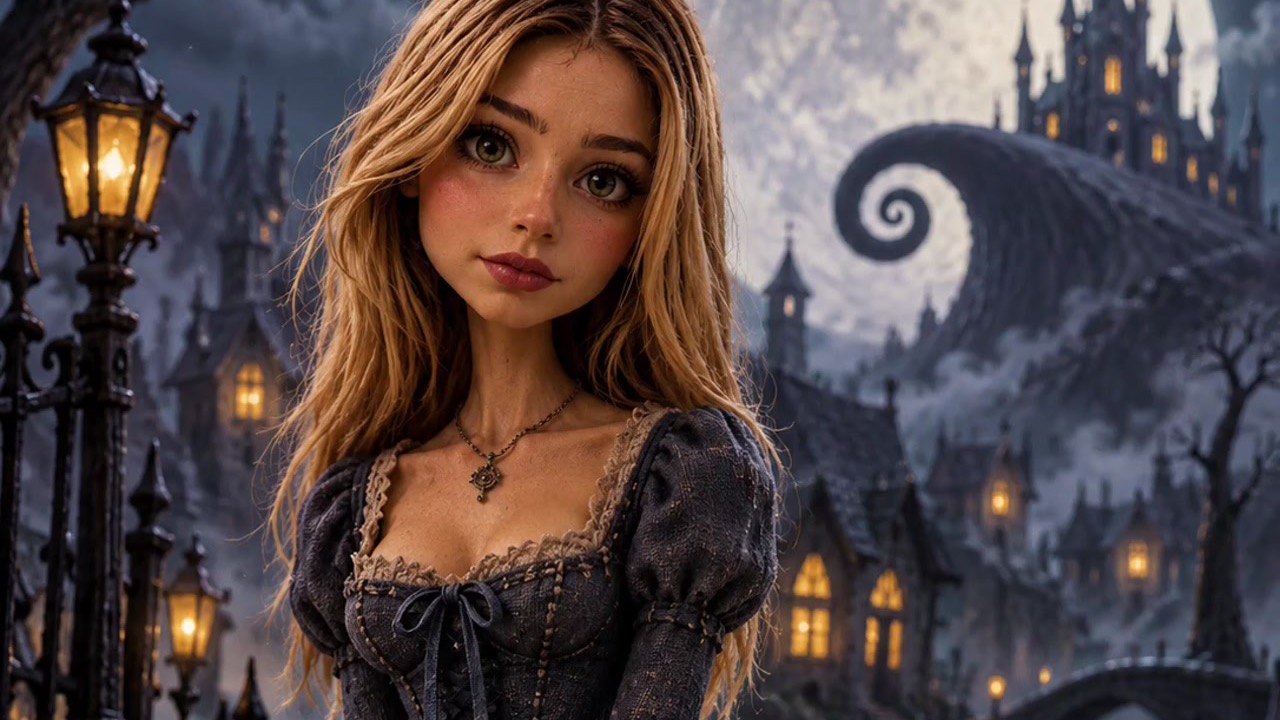
To make a stop-motion Halloween video of yourself, open the Stop-Motion Me template on VerseIn. Upload a clear front-facing photo that shows your face and hairstyle, then press Generate. The template turns you into a handmade-looking gothic puppet standing in a moonlit fairytale town. You don't need clay, a camera rig or hours of frame-by-frame work.
Key Takeaways
- Stop-Motion Me turns a single photo of you into a gothic puppet scene that's sweet with a touch of spooky.
- The upload hint asks for your face and your hairstyle, so pick a photo where your hair is easy to see.
- There are three steps: select the template, upload your photo, generate and post.
- The finished video is saved to your Media library, ready to post.
What the Stop-Motion Me video looks like
Stop-Motion Me gives you the look of a handcrafted puppet film without the craft work. The Stop-Motion Me template page describes it as turning your photo into a handcrafted gothic puppet in a moonlit fairytale town, "sweet with a hint of spooky."

In the example, the puppet wears a dark, lace-trimmed dress and has a black cat for company. Behind her, castle towers and lit windows glow under a big moon. It's charming rather than gory, so it suits people who like Halloween but don't want a horror clip on their feed.
If you want something darker, the Vampire Bride walkthrough covers a candlelit gothic portrait with more bite.
What photo to upload
The template asks for "a clear front-facing photo with your face and hairstyle visible." Most portrait templates only mention the face. This one names your hair too, as Little Dark Witch does, which suggests the hairstyle is part of what makes the puppet read as you.
| Works well | Avoid |
|---|---|
| Face toward the camera | Profile or over-the-shoulder shots |
| Hair fully in frame, including the ends | Crops that cut off the top of your head |
| Hair down or styled the way you usually wear it | Hats, hoods or a towel over your hair |
| Sharp focus, even light | Blurry, backlit or very dark photos |
| Only you in the photo | Group shots |
Long hair is a good example of why framing matters. If your hair falls past your shoulders, a head-and-shoulders crop can chop it off. A slightly wider shot may give the template a fuller picture. Short or curly styles still need the whole outline in view, with no hand or phone covering part of it.
Turning a friend into a puppet is fun, but ask them first and use their photo only after they say yes.
How to make the video, step by step
- Select the Stop-Motion Me template.
- Upload your photo (click on the web, tap in the app).
- Generate and post.
You can follow them on a computer through the VerseIn web app or on your phone with the VerseIn app for iOS or Android.
Step 1: Select the Stop-Motion Me template
Go straight to the Stop-Motion Me template, or open the festival templates and pick it from the festival templates.
Step 2: Upload your photo (click on the web, tap in the app)
Choose a front-facing shot where your face and hair are both clear. Before you move on, look at the preview and make sure no part of your hairstyle is cut off. If it is, switch to a wider photo now.
Step 3: Generate and post
Press Generate and confirm. Once it's finished, the video is saved to your Media library, ready to post.
If the puppet doesn't look like you
Your photo is the main thing you can change, so start there. A few suggestions:
- Pick a photo where your whole hairstyle shows. If the first upload cut off your hair or hid it under a hood, a wider, front-facing shot gives the template more of you to work with.
- Use the style people know you for. Bangs, braids, a bun or loose waves are worth trying. Your everyday look may make the puppet easier to recognize.
- Swap a dim or blurry shot for a sharper one. A clear face and clear hair edges are what the upload hint asks for.
Each new run uses credits, so it helps to choose the replacement photo carefully before you generate again.
More Halloween templates to try
- Little Dark Witch: you as a chibi 3D witch figurine holding a lantern, with a black cat at her feet.
- Candlelight Witch: a moody portrait lit by one candle, with a huge witch shadow on the wall.
- My Shadow Has Plans: your shadow sprouts a witch hat and wings, then waves on its own.
- Scared of Myself: a little ghost flies through a wall and panics at its own reflection.
Browse the full festival collection, or see 15 Halloween photo-to-video templates to try for a grouped overview. Other walkthroughs cover the Autumn Witch video and turning your pet into a trick-or-treater.
FAQ
Is Stop-Motion Me free to use?
It uses credits, and the amount depends on the tool, model and settings. You'll always see the total cost before you confirm. If you're new, your sign-up credits are free and can go toward your first puppet video. On a paid plan, your exports carry no watermark. Plans are compared on the pricing page.
What happens if the generation fails?
If it fails because of a processing error, a timeout or a content safety check, the credits are returned to your account automatically.
Do I need a Halloween costume in my photo?
No. The template supplies the gothic puppet look and the moonlit town, so everyday clothes are fine. What matters most is a clear view of your face and hair.
Is this real stop-motion animation?
No. Traditional stop-motion means posing a physical puppet and photographing it frame by frame. Stop-Motion Me creates that handcrafted puppet look with AI from a single photo, so there's nothing to build or shoot.
Make your Stop-Motion Me video
Upload one clear photo and see yourself as a handcrafted gothic puppet in a moonlit fairytale town.