How to Make a Vampire Bride Video with AI
Versein Team · Updated
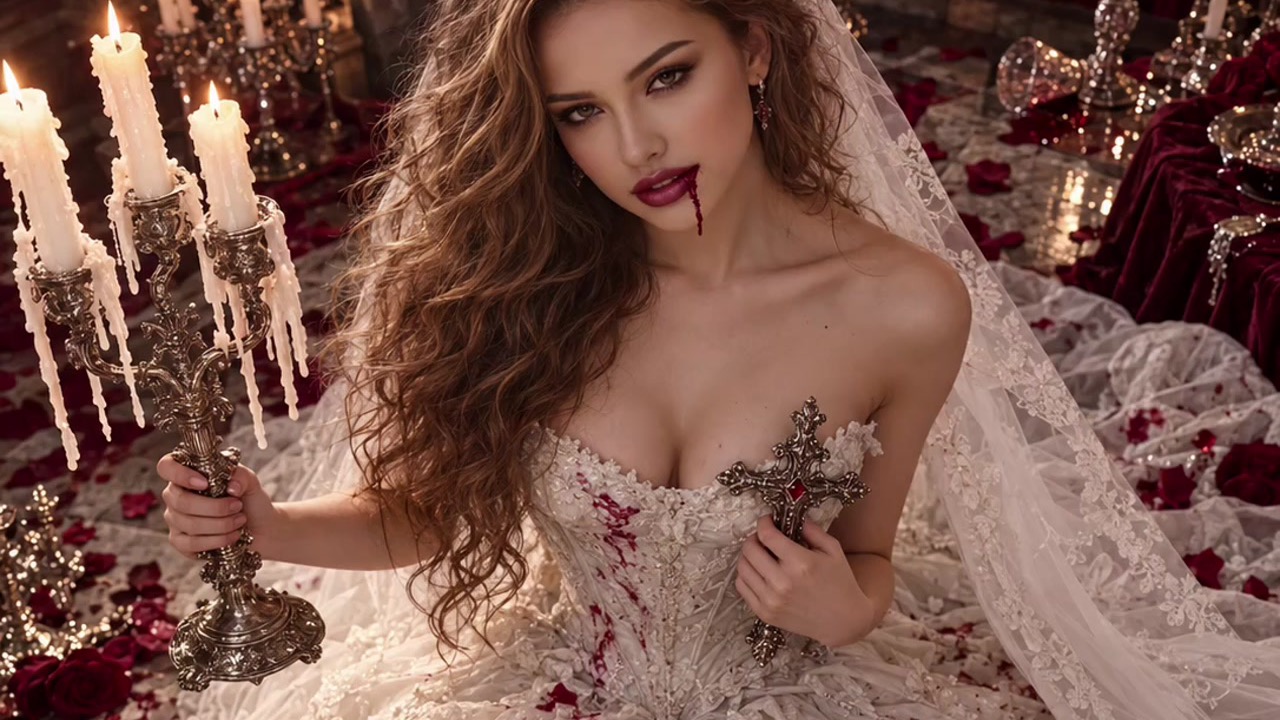
To make a vampire bride AI video, open the Vampire Bride template on VerseIn, upload a clear front-facing photo of your face, and press Generate. The template turns that one photo into a dark gothic wedding scene, so you don't need a costume, a set or editing software. The finished video lands in your Media library, ready to post for Halloween.
Key Takeaways
- The Vampire Bride template needs only one photo: a clear, front-facing shot with your face visible.
- The template supplies the look: an all-white gothic wedding portrait lit by candles, with a vampire twist.
- The process is three steps (select the template, upload your photo, generate and post) on the web app or the iOS and Android apps.
- You see the credit cost before you confirm, and credits come back automatically if a generation fails.
What the Vampire Bride video looks like
The Vampire Bride template turns your photo into a dark gothic wedding portrait. You appear dressed all in white and surrounded by candlelight, cast as a bride who is hungry for her next guest. It reads as a wedding portrait with a horror-film edge.

Because the template supplies the all-white outfit, the setting and the candlelight, your photo's job is simple: give the AI a clean view of your face.
What photo to upload
Upload a clear, front-facing photo with your face fully visible.
| Works well | Avoid |
|---|---|
| Straight-on angle, both eyes visible | Side profile that hides half your face |
| Soft, even window light | Strong backlight or hard shadows |
| Face uncovered | Sunglasses, a face mask or a hand near your chin |
| Sharp, in-focus shot | Blurry, low-light or heavily zoomed photo |
A few more pointers:
- Go for a head-and-shoulders crop. You don't need a full-body photo, since the outfit is supplied. A selfie where your face fills a good part of the frame is a solid choice.
- Skip strong filters. Beauty filters and color effects change your skin and features before the template even starts.
- Use only photos you have the right to use. Upload yourself, or someone who has agreed to become a vampire bride.
How to make a Vampire Bride video step by step
- Select the Vampire Bride template
- Upload your photo
- Generate, then save and post
Step 1: Select the Vampire Bride template
Go to the Vampire Bride template in your browser, or open the VerseIn web app. You can also use the VerseIn app from the App Store or Google Play. Sign in or create an account. New accounts get free sign-up credits.
Step 2: Upload your photo
Upload your photo (click on the web, tap in the app) and choose your front-facing photo. If you don't have a good one yet, take a fresh selfie by a window first.
Step 3: Generate, then save and post
Press Generate. The cost in credits depends on the tool, model and settings, and you see the total before you confirm. When the video is ready, it is saved to your Media library. Then post it to your Halloween stories, reels or group chats.
Tips for a better vampire bride look
Results vary from photo to photo, so try these as starting points.
- Try a calm, steady expression. The theme is eerie and elegant. A neutral face or a slight, knowing smile may fit the mood better than a wide grin.
- Look straight into the lens. A direct gaze suits a bride watching for her next guest.
- Keep hair off your face. Pulling hair back or tucking it behind your ears shows more of your features.
- Don't worry about your outfit or background. The template dresses you all in white and builds the scene, so a t-shirt photo against a plain wall is fine.
- Try two or three photos. If the first result isn't quite right, a different angle or light may give you a version you like more.
More Halloween templates to try
- Porcelain Gothic Wedding: another gothic wedding look, if you want a second bridal option.
- Vampire Awakening: a different vampire look for your photo.
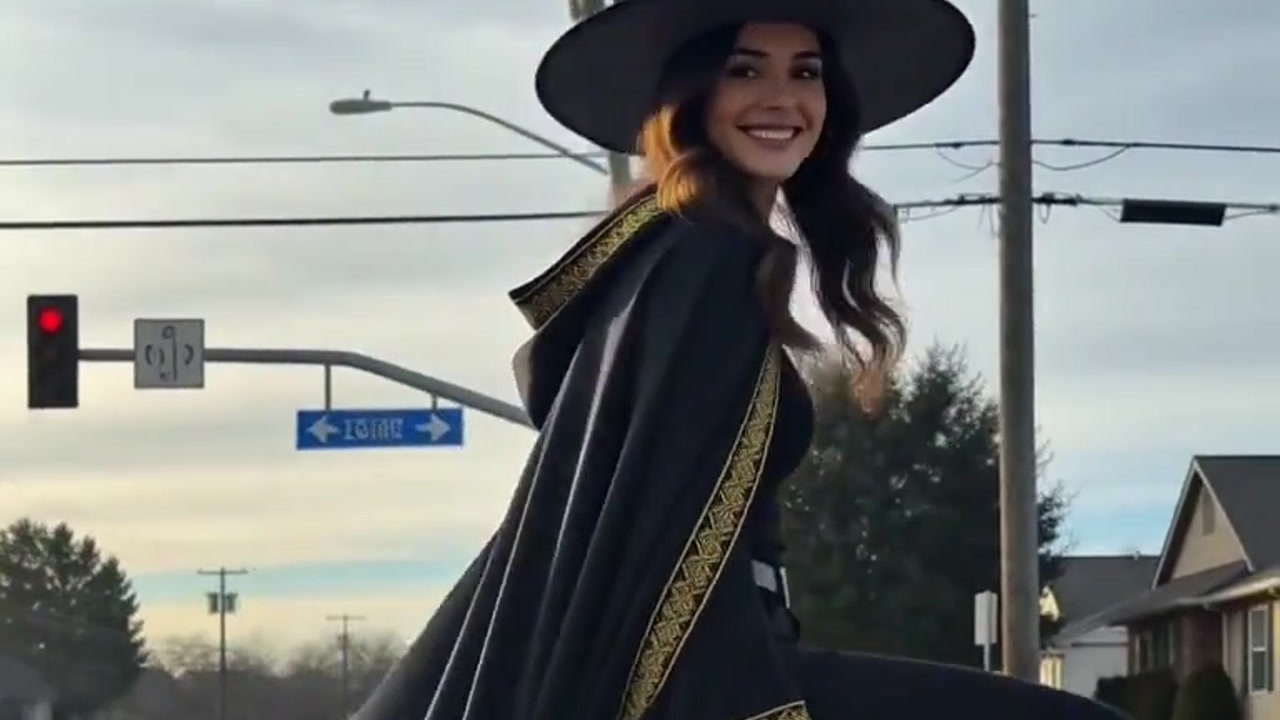
- Autumn Witch: fly a broomstick in orange tulle above a glowing fairytale town.
- Werewolf? More Like Werepup: a full-moon werewolf transformation that ends as a tiny, fluffy wolf cub.
- Step-by-step guides: how to make an Autumn Witch AI video and how to make a werewolf-to-werepup video.
You can browse every seasonal option in the festival templates category.
FAQ
Do I need a costume or makeup?
No. The template supplies the all-white outfit, the setting and the candlelight.
Can I make the video on my phone?
Yes. Use the VerseIn app for iOS or Android.
Is the Vampire Bride template free?
New accounts get free sign-up credits you can use toward it. Each generation uses credits, and you see the total before you confirm. Paid plans export without a watermark. See pricing for plan details.
What if my video doesn't look like me?
Try a different photo that is sharp, evenly lit and taken straight-on, with nothing covering your face.
What if a generation fails?
If a generation fails because of a processing error, a timeout or a content safety check, the credits are returned to your account automatically.
Make Your Vampire Bride Video
Upload one clear front-facing photo and let the Vampire Bride template build the candlelit scene.