How to Make a Salon-to-Vampire Transformation Video with AI
Versein Team · Updated
To make a salon-to-vampire transformation video, open the Salon to Vampire template on VerseIn, upload a clear front-facing photo with your face visible, and press Generate. The template turns a regular selfie into a salon makeover that tips into glam-gothic, with a puff of smoke and a pair of fangs at the end.
Key Takeaways
- Salon to Vampire starts from a single photo of your face. No costume, wig or makeup is needed.
- The upload hint asks for a clear, front-facing photo with your face visible, so a straight-on selfie is the safest pick.
- Think of it as a three-step appointment: book the chair (pick the template), sit down (add your photo), then the reveal (generate).
- Your vampire makeover lands in your Media library, ready to post.
What the Salon to Vampire video looks like
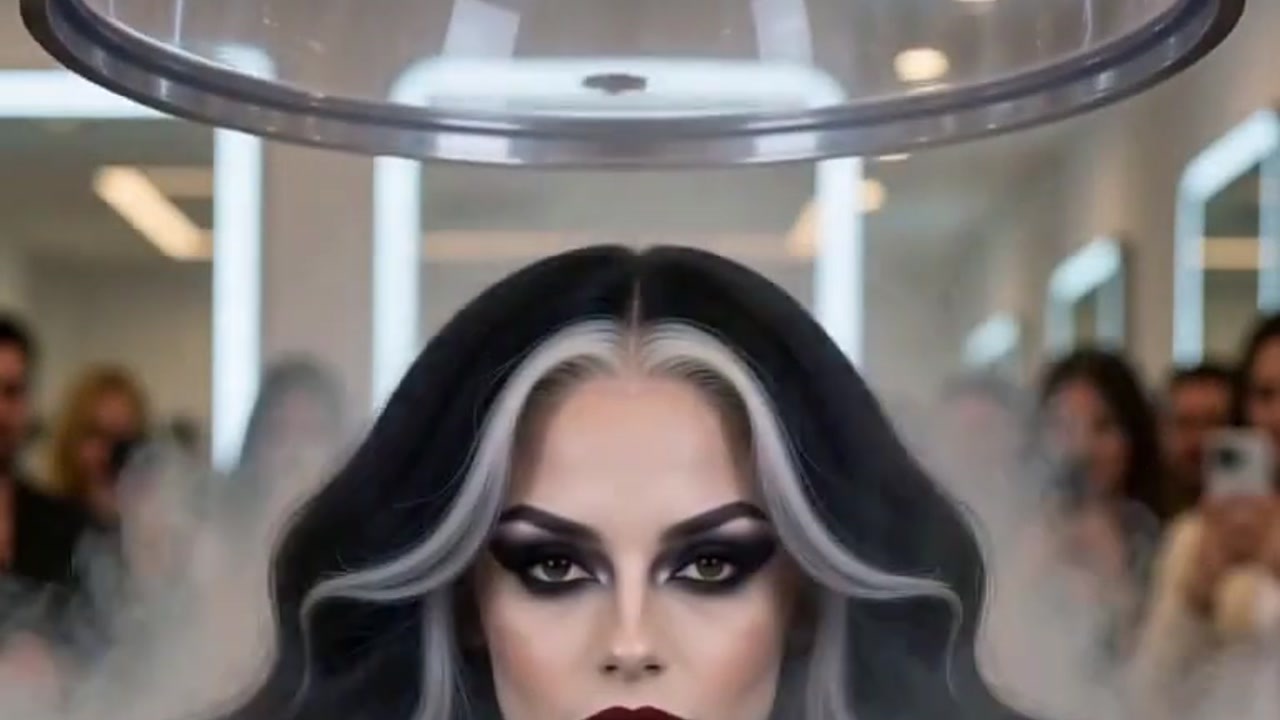
Salon to Vampire is a before-and-after joke with a gothic twist. According to the Salon to Vampire template page, it turns your photo into a salon makeover gone glam-gothic, where one puff of smoke leaves you as a fanged vampire icon.

In the example frame, the woman has long dark hair streaked with silver and dark lipstick, and she holds a glass of red drink while smoke fills the salon around her. The mood is polished and dramatic rather than gory. In our view, it suits beauty creators, salon pages and anyone who enjoys a dramatic before-and-after.
What photo to upload
The template asks you to "upload a clear front-facing photo with your face visible." Since the whole joke is that your face gets a full vampire makeover, the photo needs to show that face plainly.
| Works well | Avoid |
|---|---|
| Looking straight at the camera | Side profiles or a strong head tilt |
| Bright, even light on your face | Backlit shots or harsh shadows |
| Hair off your face, tucked back or behind your ears | Bangs or strands covering your eyes or cheeks |
| Just you, sharp and in focus | Group shots, filters or heavy blur |
A plain, everyday look can make the most of the before-and-after contrast, since the template handles the gothic glam. Sunglasses and face masks hide your eyes and mouth, and the hint asks for your face to be visible. A head-and-shoulders crop is a natural fit for a salon-chair scene.
Planning to give a friend the fangs? Get their OK before their face goes anywhere near the salon chair.
How to make the video, step by step
- Select the Salon to Vampire template.
- Upload your photo (click on the web, tap in the app).
- Generate and post.
Book your chair from a laptop in the VerseIn web app or from your phone in the VerseIn app for iOS or Android.
Step 1: Select the Salon to Vampire template
Use the template page link above to land on Salon to Vampire, or find it among the seasonal looks on the festival templates page. First visit? Sign up so your makeover has an account to save to.
Step 2: Upload your photo (click on the web, tap in the app)
Choose the front-facing photo you picked with the table above. Check your photo: your whole face should be clear and well lit, like a client facing the salon mirror. If anything covers your eyes or mouth, replace the photo before moving on.
Step 3: Generate and post
Tap or click Generate, confirm, and let the makeover run. The finished vampire look is saved to your Media library, ready to post as a Reel, a TikTok or a story.
Photo tips for a stronger transformation
You may want to try these if your first result doesn't feel quite right.
- Try a neutral or slightly serious expression. A calm face could give the fanged ending more contrast than a big grin.
- Keep your hair off your face. The example frame shows long, styled hair. If you wear yours down, tucking it behind your ears keeps your face clear, in line with the table above.
- Pick soft, front-on light. Window light facing you tends to show your features evenly, so nothing is lost in shadow.
- Skip the cluttered background. The template brings its own salon, so a plain wall behind you gives the makeover a clean "before."
- Start with a bare, "before" selfie. Beauty filters and face-smoothing apps can change your features, so an unretouched shot may give the makeover a truer starting point.
More Halloween templates to try
- Vampire Bride: a white, candlelit gothic wedding portrait with a hungry streak.
- Vampire Awakening: a moodier vampire reveal, with glowing ice-blue eyes opening and fangs showing in a smile.
- Haunted Ward Nurse: a chilling gothic horror portrait set in a haunted hospital.
- Potion Gone Wrong: one gulp of glowing potion and, poof, the witch is a tiny bat.
Prefer lace and roses to fangs? Try the Porcelain Gothic Wedding tutorial, or browse the roundup of Halloween photo-to-video templates.
FAQ
Is the Salon to Vampire template free to use?
Each makeover costs credits, with the amount set by the tool, model and settings, and the total appears before you confirm. If you've just signed up, you can use your free sign-up credits toward it. Paid plans remove the watermark from exports. Compare options on the pricing page.
What happens if my video fails to generate?
Nothing is lost. Credits for a failed makeover come back to you automatically when the cause is a processing error, a timeout or a content safety check.
Should I do vampire makeup before taking my photo?
You can skip it. The glam-gothic look and the fangs come from the template, and a bare-faced selfie gives the transformation a clearer "before." Just keep the photo clear and front-facing, with your face visible.
Make your Salon to Vampire video
Upload one clear, front-facing photo and watch a salon makeover end with fangs this Halloween.