How to Make a Porcelain Gothic Wedding Video with AI
Versein Team · Updated
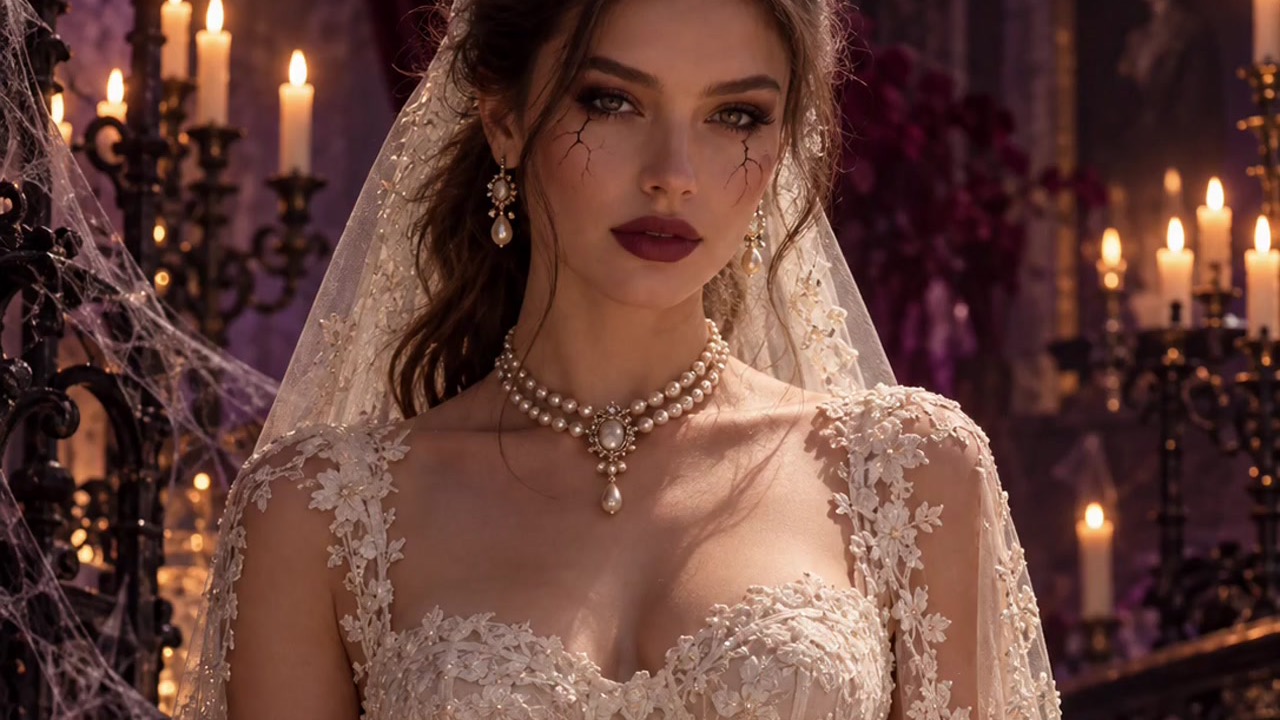
To make a Porcelain Gothic Wedding video, open the Porcelain Gothic Wedding template on VerseIn, upload a clear front-facing photo with your face visible, and press Generate. The template builds an elegant gothic wedding scene around you, with lace, roses and candlelit castle shadows, from that single photo.
Key Takeaways
- One photo is all you need: clear, front-facing, with your face visible.
- The look is elegant gothic: lace, roses and candlelit castle shadows.
- Making it takes three steps: select the template, upload your photo, then generate and post.
- The finished video is saved to your Media library, ready to post.
What the Porcelain Gothic Wedding video looks like
The template's official description promises "a hauntingly elegant gothic wedding portrait, lace, roses and candlelit castle shadows." In other words, it's a wedding portrait first and a Halloween piece second. See the example on the Porcelain Gothic Wedding template page.

In the example frame, an ivory lace gown, a bouquet of dark red and white roses and candles behind her carry the mood. That makes it a good fit for anyone who wants a dressed-up Halloween post that still looks beautiful. If you'd rather have a darker, horror-leaning version of the same idea, read how to make a Vampire Bride video.
What photo to upload
The upload hint asks for "a clear front-facing photo with your face visible." Since the template supplies the setting (lace, roses and candlelit castle shadows), your photo mainly needs to show your face well.
| Works well | Avoid |
|---|---|
| Facing the camera, chin level | Looking sharply up, down or away |
| Soft daylight on your face | Harsh flash or deep shadows |
| Eyes and brows uncovered | Sunglasses, heavy bangs or a hand over your face |
| Just you in the shot | Friends cropped in at the edges |
You don't need a wedding dress or a full-body shot. A simple head-and-shoulders photo in everyday clothes gives the template what its hint asks for. Upload only photos of yourself, or of a person who has happily agreed to star in a gothic wedding portrait.
How to make the video in three steps
- Select the Porcelain Gothic Wedding template.
- Upload your photo (click on the web, tap in the app).
- Generate and post.
You can use the VerseIn web app on a computer, or the VerseIn app on an iOS or Android phone.
Step 1: Select the Porcelain Gothic Wedding template
Go straight to the Porcelain Gothic Wedding template, or find it among the festival templates. Sign in, or create an account if you're new.
Step 2: Upload your photo
Upload your photo (click on the web, tap in the app). Pick the shot where your face is sharpest and most evenly lit. If none of your photos fit, a fresh selfie facing a window may be a quick option.
Step 3: Generate and post
Press Generate and confirm. Once the video is done, it is saved to your Media library, ready to post.
Photo tips for a more elegant result
Every photo turns out a little differently, so treat these as ideas to try rather than rules.
- Think about the mood of a formal portrait. A closed-mouth smile or a still, steady gaze is one option worth trying for a lace-and-roses scene.
- Clear your face. Pin back loose strands or side-sweep long bangs so your eyes and brows show.
- Skip the flash. A shot taken in shade or beside a window tends to have gentler shadows, which may sit more easily in a candlelit scene.
- Use an unedited photo. Skipping heavy filters and face-smoothing apps keeps your real features for the template to work from.
- Ignore the background. The castle shadows come from the template, so a plain wall or a messy room behind you is fine.
More Halloween templates to try
- Haunted Ward Nurse: a chilling gothic horror portrait of a mysterious nurse from a haunted hospital.
- Candlelight Witch: a moody portrait lit by a single candle, with a giant witch shadow on the wall.
- Vampire Awakening: a gothic vampire who opens glowing ice-blue eyes and smiles to show their fangs.
- Little Dark Witch: you as a chibi 3D witch figurine with a lantern, a black cat and a glowing castle.
For a brighter look, see how to make an Autumn Witch AI video, or browse more ideas in Halloween photo-to-video templates to try.
FAQ
Is the Porcelain Gothic Wedding template free?
It uses credits. The amount depends on the tool, model and settings, and you'll always see the total cost before you confirm. New accounts get free sign-up credits you can use toward it, and paid plans export without a watermark. Plan details are on the pricing page.
What happens if a generation fails?
If it fails because of a processing error, a timeout or a content safety check, your credits are returned automatically.
What if the result doesn't look like me?
Try another photo. A straight-on shot in soft light, with nothing covering your eyes, gives the template a clearer view of your face.
Make your Porcelain Gothic Wedding video
Upload one clear front-facing photo and step into a candlelit gothic wedding of lace and roses.