How to Make a 'Caught on Camera' Witch Crossing Video with AI
Versein Team · Updated
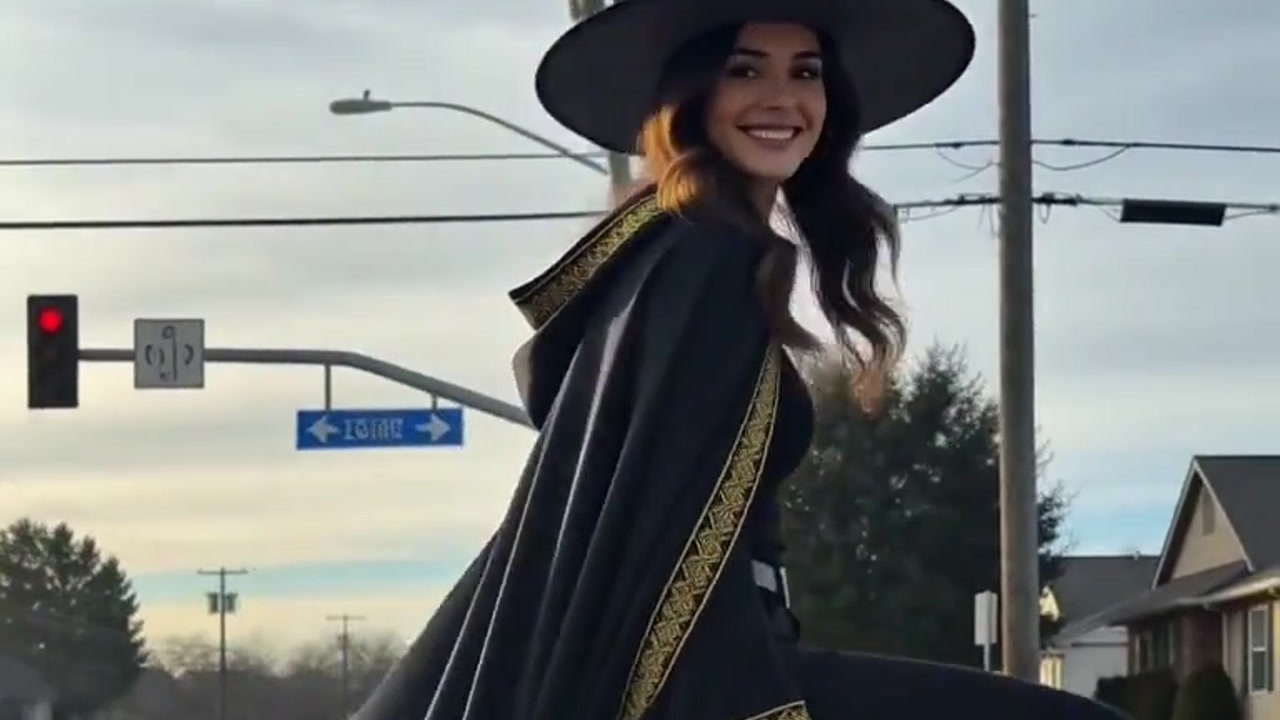
To make a "Caught on Camera" Witch Crossing video, open the Caught on Camera: Witch Crossing template on VerseIn, upload a clear photo with your face visible, and press Generate. You get what looks like a phone clip of you gliding over a crosswalk on a broomstick, grinning at the driver.
Key Takeaways
- One photo of you is enough. The hat, robe, broom and street all come from the template's scene.
- The upload hint asks for a clear photo with your face visible. It does not ask for a front-facing shot.
- Pick the crosswalk template, add your photo and press Generate; that's the whole process.
- The clip is meant to look real, so post it as an obvious Halloween joke, not as actual footage.
What the Witch Crossing video looks like
The humor here comes from the format. Instead of a fairytale backdrop, you appear on an ordinary street, filmed as if someone in a car grabbed their phone on a city street. The Caught on Camera: Witch Crossing template page describes it as a "real" phone clip of you floating across a crosswalk on a broomstick, grinning at the driver.

Everyday details like traffic lights and power lines make the broomstick feel out of place in a funny way. If you'd rather have a dreamy, storybook flight, the Autumn Witch tutorial covers the softer version of the same idea.
What photo to upload
The template asks you to "upload a clear photo with your face visible." Several other VerseIn Halloween templates ask for a front-facing photo, but this hint leaves the angle open, so a photo where your head is turned a little is still a candidate.
| Works well | Avoid |
|---|---|
| Face clearly visible, straight on or slightly turned | Sunglasses, a mask or hair across your face |
| Sharp focus and even light | Blurry, dark or strongly backlit shots |
| Just you in the frame | Group photos or other faces nearby |
| A plain, unfiltered photo | Beauty filters or stickers over your face |
Your outfit doesn't matter much, because the template turns you into a broom-riding witch.
How to make the video, step by step
- Select the Caught on Camera: Witch Crossing template.
- Upload your photo (click on the web, tap in the app).
- Generate and post.
You can make the clip from a browser on the VerseIn web app, or from your phone with the VerseIn app for iOS or Android.
Step 1: Select the template
The Witch Crossing template page takes you there in one click. It is also listed with the other seasonal looks in the festival templates. If you don't have an account yet, create one before you start.
Step 2: Upload your photo
Upload your photo (click on the web, tap in the app). Before moving on, look at the preview and make sure your face is easy to see. A quick swap at this point is easier than starting over later.
Step 3: Generate and post
Hit Generate, then confirm to start your broomstick crossing. When it's done, the clip is saved to your Media library, ready to post.
Tips for choosing your photo
You might try a couple of photos to see which one gives the most believable clip. A few ideas:
- Go with a smile. The scene has you grinning at the driver, so a photo where you're already smiling may fit the moment better than a serious face.
- Consider an outdoor shot. The example takes place on a street in daylight. A photo taken outside, in natural light, may blend into that setting more easily than one lit by a lamp.
- Keep it casual. A relaxed everyday phone photo can suit the "someone filmed this" look better than a heavily posed studio portrait.
- Leave room around your head. A photo that isn't cropped tight at the hairline keeps your whole face and hair in view.
Post it as a joke, not as news
A clip that imitates real phone footage can travel far from your feed, and strangers may not see the original context. Put the joke in the caption, for example "Halloween AI edit" or "made with AI", and don't share it as genuine news or a real sighting. If the platform you post on offers a label for AI-generated content, it's a good idea to turn it on.
More Halloween templates to try
- Magic Candy Portal: doorbell-cam style footage of you opening a glowing portal full of candy.
- My Shadow Has Plans: your shadow sprouts a witch hat and wings and waves on its own.
- Autumn Witch: another broomstick ride, this time above a glowing fairytale town.
- Potion Gone Wrong: a witch drinks a glowing potion and turns into a tiny bat.
For a grouped overview of more seasonal looks, see 15 Halloween photo-to-video templates to try.
FAQ
Is the Witch Crossing template free?
Generating uses credits, and you'll always see the total cost before you confirm. New accounts get free sign-up credits, which you can use toward it. Paid plans export without a watermark. See the pricing page for plan details.
What happens if my generation fails?
You get your credits back automatically. That applies when the clip can't be made due to a processing error, a timeout or a content safety check.
Can I use a photo of a friend?
Yes, as long as your friend has agreed to appear in a fake "caught on camera" clip before you upload their photo. The same photo advice applies: one clear face, nobody else in the frame.
What if the clip doesn't look right?
Try a different photo, ideally one that's sharper, brighter or shows more of your face. Small changes to the photo are the simplest thing to adjust.
Make your Witch Crossing clip
Upload one clear photo and watch yourself fly across a crosswalk on a broomstick this Halloween.