How to Make a Werewolf-to-Werepup Transformation Video with AI
Versein Team · Updated
To make a werewolf-to-werepup video with AI, open the "Werewolf? More Like Werepup" template on VerseIn, upload a clear front-facing photo of your face, and press Generate. The video plays out a full-moon werewolf transformation, then swaps the scary payoff for a tiny, fluffy wolf cub.
Key Takeaways
- The Werepup template transforms a person, not a pet, so it needs a front-facing photo with your face visible.
- The joke only works if viewers recognize you before the change, which makes a clear face photo the most important input.
- It takes three steps on the web app or the iOS and Android apps.
- The credit cost is shown before you confirm, and failed generations refund their credits.
What the werewolf-to-werepup video looks like
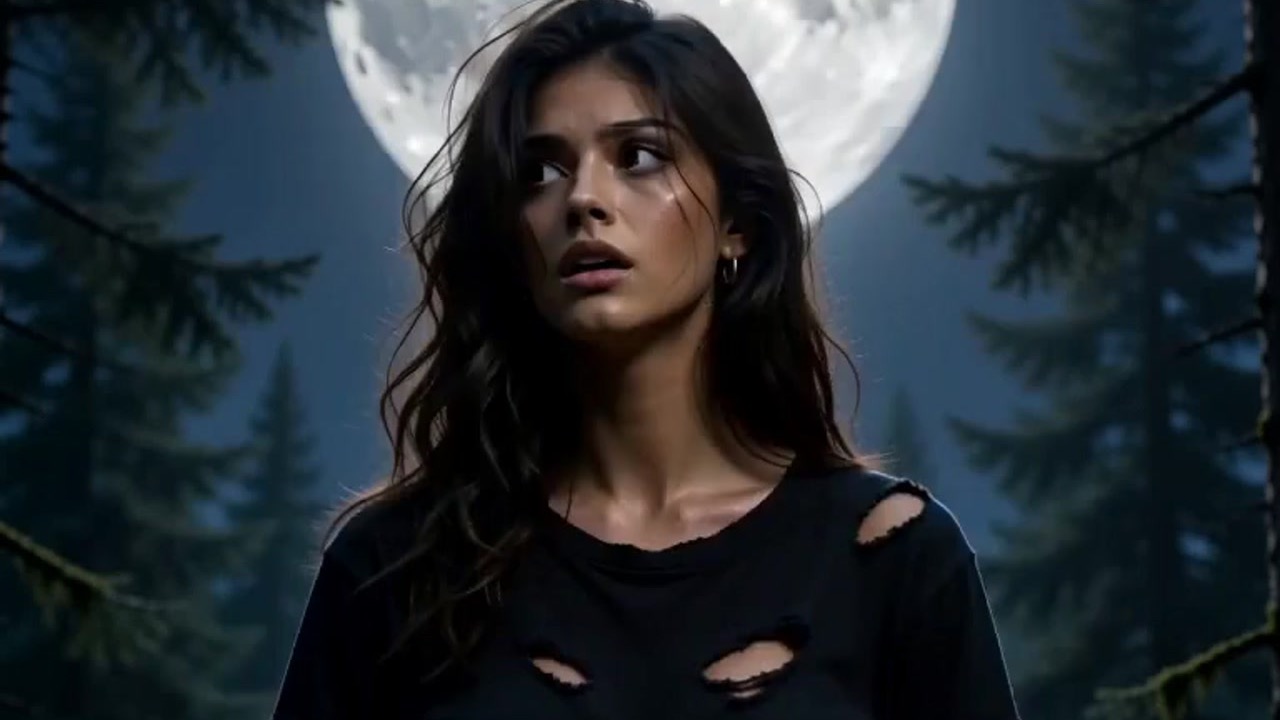
The video builds like a horror clip and lands like a cute animal clip. VerseIn describes it as a full-moon werewolf transformation that finishes as the tiniest, fluffiest wolf cub.

In the middle of the example, she howls at the full moon while her hands turn into furry paws.

Viewers now expect a snarling monster. Instead, the example ends with a fluffy grey wolf cub sitting on a dark shirt on the forest floor, among the pines. That contrast is the whole punchline.
What photo to upload
Upload a clear, front-facing photo with your face visible. In a transformation video, the opening seconds need to read as you, or the change from person to werewolf to cub loses its point.
| Good photo | Weak photo |
|---|---|
| You look straight at the camera | Your head is turned or tilted away |
| Your face fills a good share of the frame | You are small in a wide or group shot |
| Light falls on the front of your face | A bright window or sky sits behind you |
| Eyes, brows and jawline are uncovered | Sunglasses, a mask or hair hide your features |
Two more checks help the "before" moment look like you:
- Use a recent, unfiltered photo. Face-smoothing and reshaping filters change the features friends would use to recognize you.
- Upload only your own face, or a friend's once they've said yes. It's their likeness turning into a werewolf, so ask first.
How to make the video, step by step
- Select this template
- Upload your photo
- Generate and post
Step 1: Select this template
Open the Werepup template on the web or in the VerseIn iOS or Android app, available on the App Store and Google Play. If you're new, sign up first; new accounts come with free credits.
Step 2: Upload your photo
- Click or tap the upload area.
- Choose your front-facing photo.
- Check the preview. If your face is cropped, turned away or partly hidden, pick another photo before moving on.
Step 3: Generate and post
Press Generate and confirm the credit total shown on screen. When it finishes, it is saved to your Media library, ready to post.
Tips for a better face photo
Your face photo is the only input, so a few choices about that image are worth trying.
- Try a neutral or wide-eyed expression. Either may suit a full-moon setup better than a big grin.
- Consider a head-and-shoulders crop. It keeps your face large enough to read clearly in the opening shot.
- Pick a photo you'd enjoy seeing turn into a cub. A favorite selfie can make the ending funnier for people who know you.
- Keep a second photo on hand. If the first result doesn't look enough like you, another shot is a quick retry.
More Halloween templates to try
- Vampire Bride: a dark gothic wedding portrait, all in white, candlelit and hungry for your next guest.
- Autumn Witch: a dreamy portrait flying on a broomstick in orange tulle above a glowing fairytale town.
- Scared of Myself: a spooky version of you.
- My Shadow Has Plans: your shadow comes alive.
- Related tutorials: how to make a Vampire Bride video and how to turn your pet into a trick-or-treater.
Every seasonal option lives on the festival templates page.
FAQ
Why is it called Werepup?
Because the transformation doesn't end on a full-grown werewolf. It ends on a wolf cub, so your werewolf turns out to be more of a werepup.
Can I use a group photo?
One person works best. The upload hint asks for a clear front-facing photo with your face visible, which a solo photo gives you most reliably.
Is it scary enough for a Halloween party post?
It starts spooky and ends cute, so it suits posts where you want laughs more than screams. For a creepier mood, look at other options in the festival templates.
How many credits does the Werepup template use?
VerseIn doesn't list a fixed amount; the cost depends on the tool, model and settings. The total appears before you confirm, and if a generation fails from a processing error, timeout or content safety check, those credits go back to your account. Details are on the pricing page.
Will my video have a watermark?
Exports on paid plans have no watermark; see pricing for what the free tier includes.
Start your werewolf transformation
Upload one clear, front-facing photo and let the full moon do the rest.