How to Make an AI Music Video
Versein Team · Updated
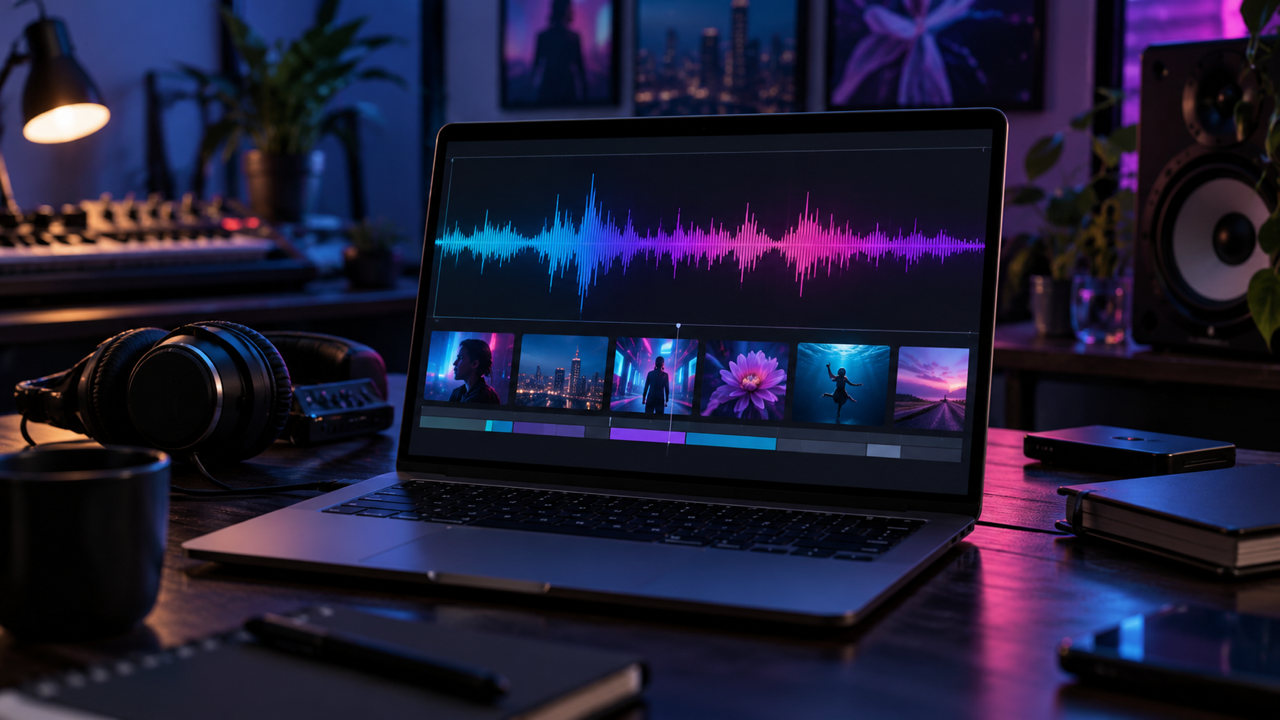
In 2023, video streaming (long- and short-form) accounted for 31% of music listening time, according to IFPI's Engaging with Music 2023 highlights. An AI music video has three parts: a track, short generated shots, and an edit that times the shots to the music. One possible workflow with VerseIn tools: make the track, generate the shots, cut them in your own editing app, then upscale and label realistic AI content.
Key Takeaways
- Plan the mood, length and aspect ratio first, and break the video into a list of short single shots.
- Generate the track before the visuals, so every shot can be judged against the music it will sit under.
- VerseIn's AI Music Generator makes instrumental beds, and AI Lip Sync is described for speech, so plan vocals and singing shots around that.
- Timing comes from your edit, not the generator: cut the clips to the track yourself, then disclose realistic AI content on YouTube and TikTok.
How to make an AI music video in 8 steps
- Plan the mood, length, format and shot list.
- Make the track.
- Set up a recurring performer (optional).
- Generate the shots.
- Add spoken or talking shots (optional).
- Edit the clips to the track.
- Upscale the final cut.
- Check what needs a label, then post.
Step 1: Plan the mood, length, format and shot list
Decide three things before you open any tool:
- Mood. Write one line on what the video should feel like, such as "quiet, late-night, a little lonely."
- Length. Pick a target length. It sets the duration of your track and the number of shots you need.
- Format. Choose 9:16 for vertical feeds or 16:9 for landscape players. Use the same aspect ratio for every shot.
Then write a shot list. Each line should describe one short, single shot, not a whole scene. Group the lines by the section of the track they belong to:
| Track section | Shot |
|---|---|
| Intro, slow and sparse | Empty city street at night, rain on the asphalt, camera creeping forward |
| Build | Close-up of a hand on a car's steering wheel, streetlights sliding across it |
| Peak | Car racing through a tunnel seen from low down, lights streaking past |
| Outro | The same street at dawn from far back, camera locked off |
Step 2: Make the track
The song sets the length and where the energy rises and drops. Open the AI Music Generator and describe the track in a text prompt. Mood, genre and tempo all come from what you write. Pick a duration in the form, then generate. Each generation gives you one track, and you can generate variants of the same brief.
The tool is aimed at instrumental beds for video, so the tracks have no vocals. For spoken words, the music page points to AI Voice Over. For a narration-led video instead of a song, see how to make faceless YouTube videos with AI.
Prompt tips from VerseIn's music page:
- Describe what the track should do, such as "warm, sparse, slow build," not only a genre.
- Don't name a commercial song. Describe the tempo, instrumentation, density and mood instead.
- Set the length to match your edit.
- Play the track under your cut before you judge it.
- Generate 2 or 3 versions and compare them.
A prompt for the shot list above could read: "Slow, warm lo-fi instrumental with soft electric piano and brushed drums, sparse at the start, building gently toward a fuller middle, then fading out."
The page FAQ says tracks are long enough for typical short-form and mid-length video; for longer pieces, generate sections and cut them together. Tracks are saved in the same library.
Step 3: Set up a recurring performer (optional)
If one character appears across the video, create them once in the AI Character Generator from a front-facing photo or a text description, with up to 4 images per character.
Type @ and their name in an image or video prompt to attach them. VerseIn describes the identity as staying recognizable while pose, lighting and angle change. Characters only work on supported models, so confirm your shot model is one of them.
Use a real person's photo for a character only with their consent.
Step 4: Generate the shots
Work through your shot list in Text to Video. Paste one row of the table as the prompt and fill in what the page asks for: subject, action, camera move, lighting and style. Its advice is to "write the shot, not the story." Choose the model, length and aspect ratio, generate, and adjust the prompt if the result misses.
For shots that begin from a still, such as an album-cover photo, use Image to Video. Upload one photo as the first frame or a subject reference, then add a motion prompt. Stick to your own photos or photos of people who agreed to it.
Clip length depends on the model. The general tool pages describe roughly four to twelve seconds, while the Seedance 2.5 model page lists up to 30 seconds. Plan on several clips per track section.
Many video models on VerseIn generate their own audio, including Seedance 2.5 and PixVerse C1. In a music video, your track replaces that audio. VerseIn's pages don't describe syncing a clip to an uploaded song, so the timing comes from your edit in Step 6.
Step 5: Add spoken or talking shots (optional)
AI Lip Sync takes a face video or image plus an audio file and matches the mouth to the audio. It is described for speech: background music, multiple speakers or echo make the match worse, and short lines work best.
A sung vocal over a music bed is the opposite of that input, so don't count on AI Lip Sync for singing shots. Plan around it instead:
- Use AI Lip Sync for spoken moments, such as a short intro line or a voice-over break, recorded as clean speech.
- For the sung parts, plan shots where the mouth isn't the focus: wide shots, silhouettes, hands on an instrument, or the character walking.
For a wider look at this category, see AI lip sync video generators.
Step 6: Edit the clips to the track
VerseIn's pages don't describe a timeline editor, so the cut happens in your usual editing app:
- Put the music track down first and mark where each section starts.
- Mute or remove any audio the video model generated.
- Place the clips in shot-list order and trim each one so the cuts land where the music changes.
- Watch the full cut with sound before you make small fixes.
If a section feels empty, generate one more shot for it rather than stretching a clip.
AI Captions adds on-screen text from spoken audio (SRT, TXT or burned-in), so use it for talking shots and type any lyrics or titles in your editor.
Step 7: Upscale the final cut
Upscale last, once the edit is locked. AI Video Upscaler offers 2K and 4K targets, and VerseIn says "frame rate and duration come out as they went in." Test one clip first before you upscale the whole video.
Step 8: Check what needs a label, then post
Before you upload, note which parts look or sound real: a lifelike performer, a believable street, the AI track itself. Those decide your answer to each platform's AI label question, covered below. Credit anyone whose voice, photo or likeness appears.
Labels, rights and platform rules
On YouTube, AI-generated music that is the main focus of the video is one of the listed examples of realistic content to disclose, per YouTube Help on disclosing altered or synthetic content. A label may then appear on the player. Disclosing "won't limit a video's audience," according to the same page, and clearly unrealistic content doesn't need a label.
TikTok requires creators to label AI-generated content that contains realistic images, audio or video, using the AI-generated label or a sticker or caption, according to TikTok's newsroom (September 2023).
Releasing the track on its own is a separate question, so check VerseIn's terms of service before you distribute a generated track by itself. Streaming services add their own rules. Spotify says "We support artists' freedom to use AI creatively," and in September 2025 it announced a policy against unauthorized AI voice clones and reported removing over 75 million spammy tracks in the previous 12 months, according to the Spotify Newsroom.
On any platform, don't prompt for a real artist's voice or style by name, and only use a person's likeness with their consent.
FAQ
Can the AI Music Generator make songs with vocals?
No. It is aimed at instrumental beds for video. If your video needs a sung vocal, use a recording you made or have the rights to.
Can I use VerseIn music in a commercial video?
The music page FAQ says yes, under the terms of service, on a paid plan, with no separate per-track license to manage. Check the terms for details that apply to your project.
How much does it cost to make an AI music video?
A music video uses credits for the track and for every clip, lip-sync line and upscale you run. The amount depends on the tool, model and settings, and the total cost is shown before you confirm. If a generation fails because of a processing error, a timeout or a content safety check, the credits are returned automatically. New accounts get free sign-up credits, and paid plans export without a watermark. Current plans are on the pricing page.
Start your music video with the track
Describe the mood, tempo and instruments, set the length to fit your edit, and compare a few versions.