What Is PixVerse C1? Features, Specs and Access
Versein Team · Updated
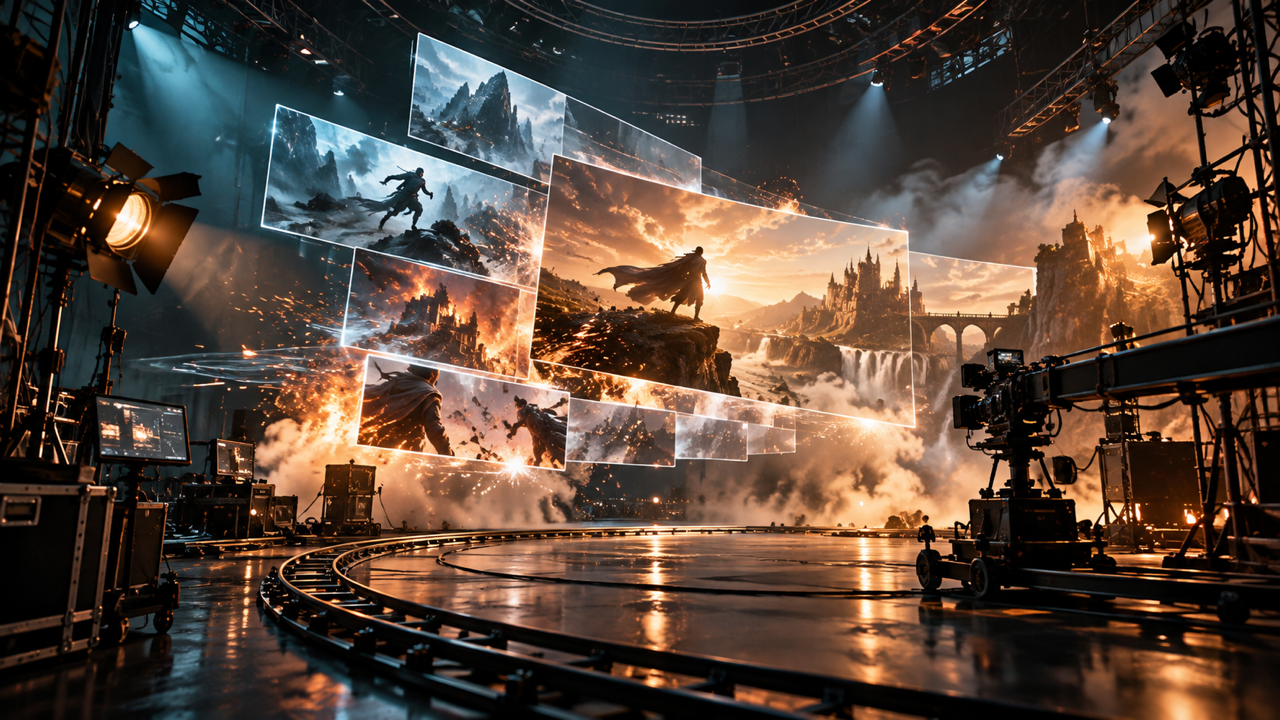
PixVerse C1 is an AI video model from PixVerse, announced on April 7, 2026. PixVerse describes it as built for film production, with a focus on action, physical interaction and visual effects. On VerseIn you can run it from text, an image or reference images, at 1 to 15 seconds and up to 1080p, with audio generated alongside the picture. The specs and features here are taken from PixVerse's announcement and overview pages and VerseIn's C1 page; we did not generate test clips for this article.
Key Takeaways
- PixVerse calls C1 "its first AI video model purpose-built for film production," aimed at consistency, physical realism and scene orchestration.
- On VerseIn, C1 supports text to video, image to video and reference to video, 1 to 15 second clips, four quality levels from 360p to 1080p, and eight aspect ratios.
- PixVerse's own guidance points C1 at briefs with fast motion, physical interaction, fantasy effects or recurring characters, and suggests PixVerse V6 for social ads, product teasers and lifestyle clips.
- Storyboard and transition modes that PixVerse documents for C1 are not listed on VerseIn's C1 page.
What PixVerse C1 is
C1 is PixVerse's model for cinematic scenes rather than general clips. In its launch announcement, PixVerse calls it "its first AI video model purpose-built for film production" and says it was designed "to solve consistency, physical realism, and scene orchestration." Put simply, PixVerse is aiming at faces that change between shots, objects that move in ways that feel off, and busy scenes that fall apart.
PixVerse's C1 overview page, published a day after the launch, frames it as "built specifically for cinematic and animation production workflows." So the pitch covers animation as well as cinematic footage.
C1 sits next to PixVerse V6, which PixVerse calls the latest version of its flagship model and announced about a week before C1. If you are deciding between the two, our PixVerse C1 vs PixVerse V6 comparison lines up their specs and intended uses.
PixVerse C1 specs on VerseIn
The table below lists the settings shown on VerseIn's PixVerse C1 model page, retrieved October 22, 2026. VerseIn's tagline for the model is "Cinematic, reference-based generation tuned for action scenes."
| Setting on VerseIn | PixVerse C1 |
|---|---|
| Developer | PixVerse |
| Modes | Text to video, image to video, reference to video |
| Video length | 1 to 15 seconds, in 1-second steps |
| Quality | 360p, 540p, 720p, 1080p |
| Aspect ratios | 16:9, 9:16, 1:1, 4:3, 3:4, 2:3, 3:2, 21:9 |
| Reference images | Optional |
| Prompt limit | 4,200 characters |
| Audio | Generates audio with the video |
The 1-second steps let you match a clip to a specific slot in an edit instead of trimming afterward. The aspect ratio list covers vertical feeds (9:16), square posts (1:1), standard widescreen (16:9) and the extra-wide 21:9 frame. Because audio comes out with the clip, you also get a starting soundtrack without a separate step. If you want to start from a written idea or a still, VerseIn's Text to Video and Image to Video pages cover those workflows across models.
VerseIn's C1 page does not list a first-and-last-frame mode. If you need to set both the opening and closing frame of a shot, VerseIn's PixVerse V6 page lists that mode.
Features PixVerse highlights in C1
PixVerse's announcement and overview page name several systems. Each description below reports PixVerse's own claims.
Action engine
PixVerse describes an "industrial-grade action engine," aimed at hand-to-hand fights, quick movement and characters interacting with objects. VerseIn's tagline makes the same point: "tuned for action scenes." In practice that means fights, chases and scenes where characters handle or hit things.
Visual effects system
The announcement also lists a "cinematic visual effects system" that handles particle, light, fluid and atmospheric effects. Sparks, smoke, splashing water, glowing magic and changing light across a scene all fall into those groups.
Storyboard to video
According to PixVerse, C1 can turn a storyboard into video, splitting scenes automatically based on how the prompt is structured. Its overview page also describes a multi-panel storyboard mode that takes a grid image of 3 to 9 panels to build a multi-shot sequence. VerseIn's C1 page lists neither storyboard mode, nor the transition mode PixVerse documents.
Native audio and character consistency
PixVerse says C1 produces "native audio-visual output," and its overview page describes the synchronized audio as optional. The same page says reference images help keep characters consistent from clip to clip. On VerseIn, you can add reference images to a C1 generation, including characters you have saved.
What PixVerse C1 is meant for
PixVerse's overview page spells out where C1 fits: "Use PixVerse C1 when the brief includes physical interaction, fast motion, fantasy effects, character continuity." It also advises against making C1 the default model for every job.
For everyday work, PixVerse points to V6. Its guidance assigns social ads, product teasers, lifestyle clips and simple image-to-video to V6. That is PixVerse's recommendation, not a measured result, but it gives you a starting rule.
Following that guidance, these briefs are candidates to try in C1 first:
- A short fight or chase for a trailer
- A fantasy shot with spells, fire, smoke or floating particles
- A recurring character who should look the same across several clips
- An animated scene where objects collide, break or get thrown across the room
For a calm product spin or a lifestyle clip, PixVerse's own advice leans toward V6. PixVerse's guidance is a starting point, so running the same idea through both models is a quick way to see which result suits your project.
How to use PixVerse C1 on VerseIn
VerseIn's model page lists three steps; the settings in step 2 are the ones in the specs table above.
- Open the studio. Go to the PixVerse C1 page and open the studio. C1 is already selected.
- Write a prompt or add a reference. Describe the scene in up to 4,200 characters, add a reference image, or both. Saved characters can be used as references. Then choose the length, quality and aspect ratio.
- Generate. Your clip is saved to your library, where options to upscale, reframe or extend it are available.
For action prompts, try describing the movement itself: who moves, in which direction, what they hit or grab, and how the camera follows. Naming the effects you want (dust, sparks, rain, glow) matches the categories PixVerse says the effects system handles.
If you want a higher-resolution finish after generating, VerseIn also has a standalone AI Video Upscaler. To compare C1 with every other video model on the platform, start from the AI Video Generator page.
Where else PixVerse C1 is available
PixVerse's announcement says C1 is available on the PixVerse web platform and through its API. Those versions may expose modes VerseIn does not list, such as the storyboard and transition modes covered above. On VerseIn, C1 sits alongside other video, image and audio tools in one VerseIn account.
FAQ
Who makes PixVerse C1?
PixVerse develops C1. The company announced it on April 7, 2026, and calls it its first video model built for film production.
Does PixVerse C1 generate sound?
Yes. VerseIn's C1 page lists audio generation, so clips come with sound. PixVerse describes the model's output as "native audio-visual." For a wider look at models that produce sound, see Best AI Video Generators with Audio in 2026.
Can I make storyboard videos with PixVerse C1 on VerseIn?
Not according to VerseIn's C1 page. PixVerse documents storyboard-to-video and a multi-panel mode that reads a grid of 3 to 9 panels, but VerseIn's C1 page lists only text to video, image to video and reference to video. PixVerse says C1 is also available on its own web platform and API, which is where those modes are documented.
What is the difference between PixVerse C1 and PixVerse V6?
PixVerse positions C1 for action, effects and character continuity, and V6, its flagship, for social ads, product teasers, lifestyle clips and simple image to video. On VerseIn their specs are close, with differences in modes and prompt limit. See PixVerse C1 vs PixVerse V6 for the full side-by-side.
How many credits does PixVerse C1 use?
Credits are used whenever you generate, and the amount depends on the tool, model and settings. You'll always see the total cost before you confirm, and if a generation fails, the credits are returned automatically. See VerseIn pricing for plan details.
Try PixVerse C1 on VerseIn
Open the studio with PixVerse C1 selected, describe your scene or add a reference image, and generate.