An AI Video Workflow for Marketing Teams
فريق VerseIn · آخر تحديث
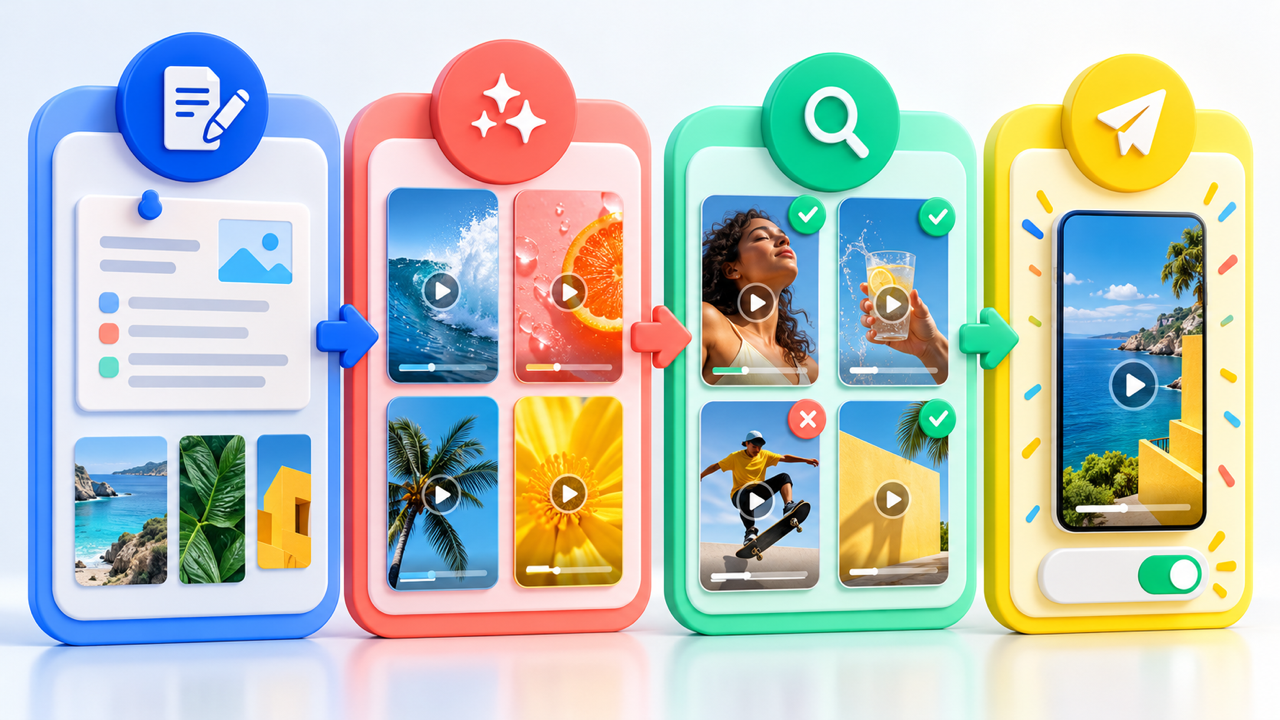
A marketing team's AI video workflow has four stages: a written brief, a generation pass that makes variants, a review for rights and claims, and a publish step sized for each placement. AI does most of the work in generation and in resizing for each placement. The brief and the review are what stop a fast pipeline from shipping the wrong video.
Key Takeaways
- Write the brief before anyone opens a generator: the product, the one approved message, the placements and the hooks to test.
- Generate one master cut, then branch into sizes and variants instead of prompting every version from scratch.
- Check every cut for consent, product accuracy, claims and captions before it leaves the team.
- The Teams & Business plan lists per-user credit usage, credit limits and model restrictions, which line up with the brief and review stages.
Why a shared workflow matters once AI is in the mix
Most marketing teams already use AI somewhere. In a HubSpot survey of more than 1,500 marketers, 86.4% said their team uses AI in at least a few marketing areas, and a Salesforce survey of 4,450 marketing professionals put organizations using at least one form of AI at 75%.
Without shared rules, faster output turns into a spread of prompt styles, spokesperson faces and product claims. A shared workflow gives everyone the same brief and the same checks.
The workflow at a glance
| Stage | What gets decided | VerseIn tools that fit |
|---|---|---|
| 1. Brief | Product, message, placements, test plan, people and voices | Templates, saved characters |
| 2. Generate | Master cut and test variants | Marketing Studio, AI UGC Ad Generator, Voice Over |
| 3. Review | Consent, accuracy, claims, disclosure, captions | AI Captions |
| 4. Publish | Sizes, languages, resolution | Reframe in Marketing Studio, AI Video Dubbing, AI Video Upscaler |
Stage 1: Write the brief
The brief is the cheapest place to fix a mistake. Changing a line of text costs nothing, while regenerating a batch of variants costs credits and time.
| Brief field | Why it matters |
|---|---|
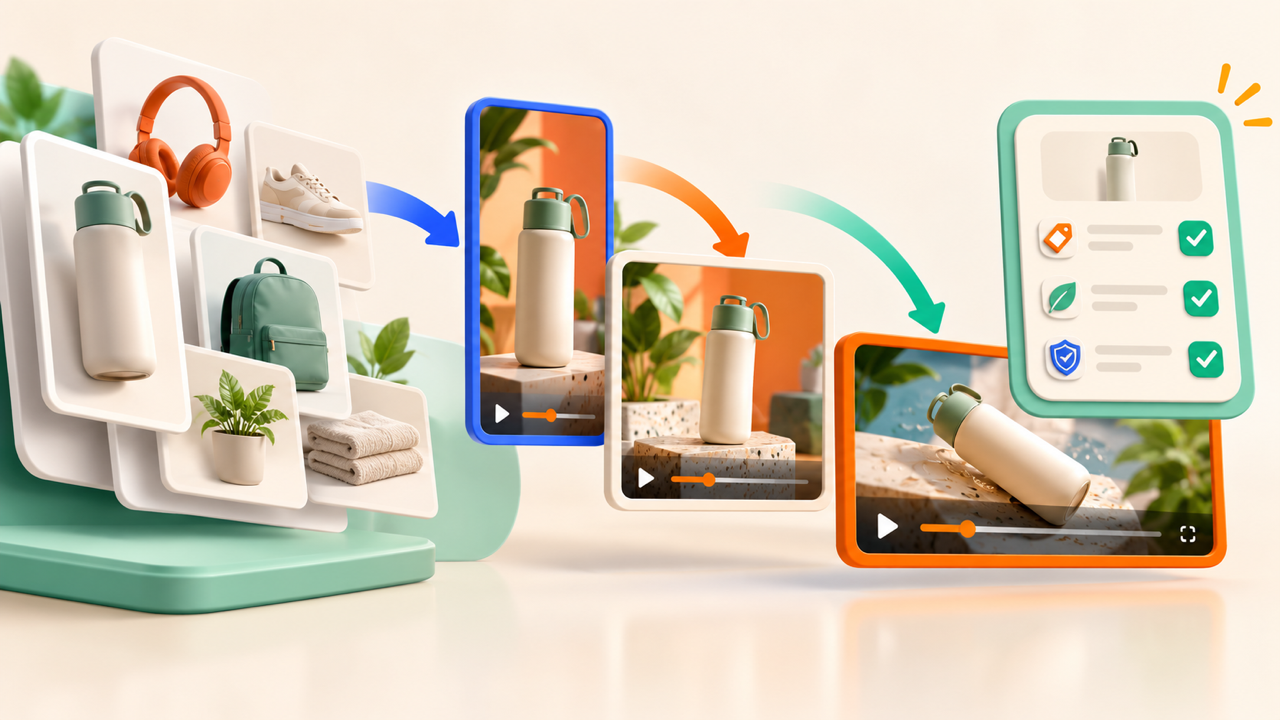
| Product and source photo | Marketing Studio starts from "a product photo and a line of copy," so pick the clearest photo now |
| The one message | Keeps every variant saying the same approved thing |
| Placements | Sets the sizes you need: 9:16, 1:1, 4:5 or 16:9 |
| Format | Testimonial, product reveal, before-and-after or UGC-style hook |
| Test plan | Which hooks, voices or opening frames you'll compare |
| People and voices | Who appears, and proof they agreed to it |
| Budget | How many credits the run should use |
For example, a hypothetical brief for a new water bottle might list one product photo, the line "Fits every cup holder," 9:16 and 1:1 placements, and three opening hooks to test. That gives whoever runs the job enough to produce comparable variants.
The brief is also where team conventions live, such as the starting template, the saved character who fronts the campaign and agreed prompt wording. See how to keep AI videos on-brand across a team for more.
Stage 2: Generate a master, then branch
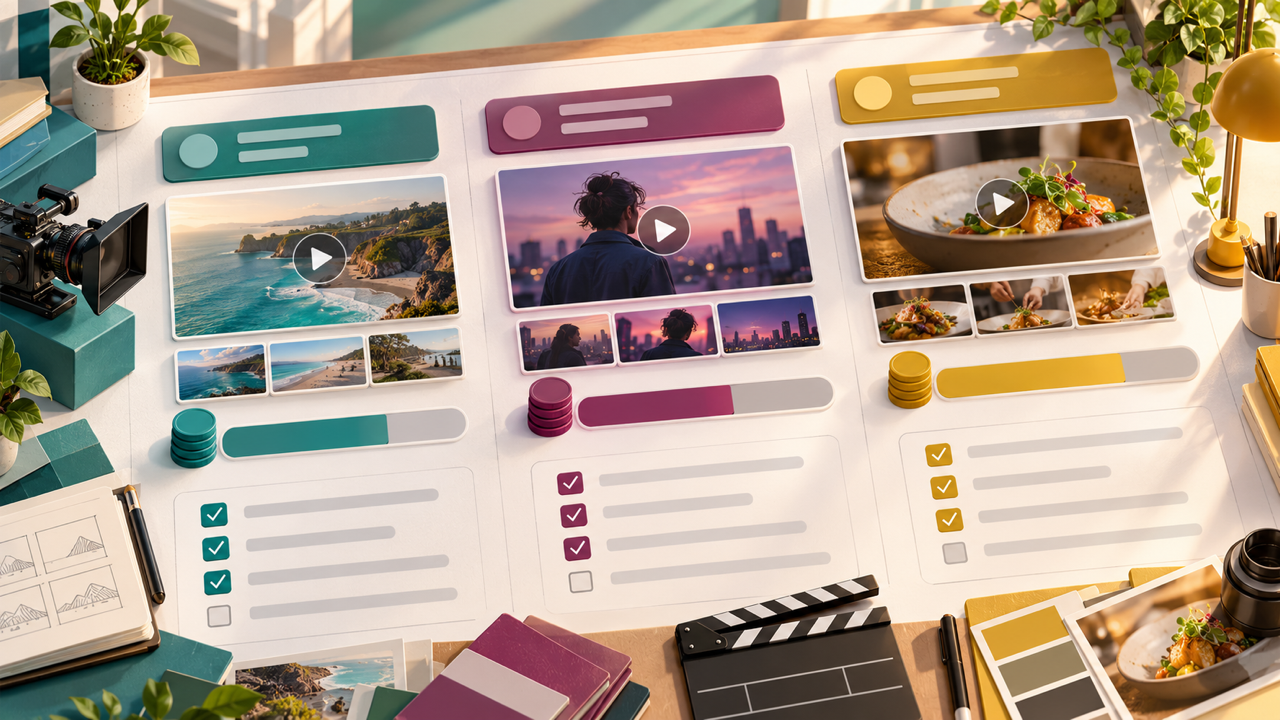
Make one master cut first, then planned variations of it. Every version shares the same base, so differences between them come from the test plan, not from chance.
Start from the product photo and copy
Marketing Studio takes a product photo, a script and a template, and returns a master cut, resized versions and variants. Its ad-format templates include testimonials, product reveals, before-and-after and UGC-style hooks.
Keep the same face and voice
Put the campaign's spokesperson into the brief as a saved AI Character Generator character, so every variant calls the same face with @name. The character's background story doubles as a note "for anyone working on the same project." Treat the voice the same way: save it in Voice Over, or clone a brand voice "once" in Marketing Studio, with the speaker's written agreement on file.
Build the test variants
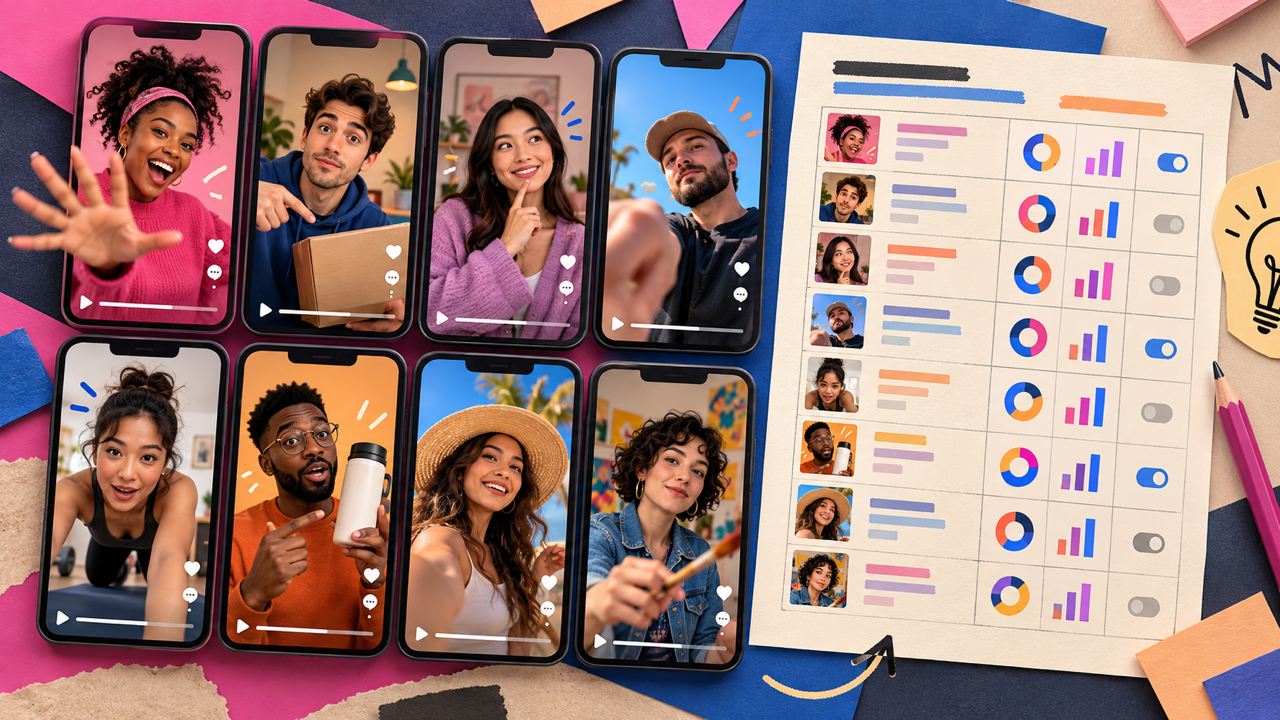
Marketing Studio's variants re-run a template with a different hook, voice or opening frame. For creator-style ads, the AI UGC Ad Generator makes several talk-to-camera versions with different hooks to compare in your generation history. The guide to AI UGC ads for performance marketing teams covers hook testing in more depth.
Stage 3: Review before anything goes live
Review catches what a generator can't judge. Run each cut through the same checklist:
- Consent. Everyone whose face or voice appears has agreed to it. The AI Lip Sync page warns against making a real person appear to say something they haven't agreed to.
- Product accuracy. Logos and label text match the real product. VerseIn's product video page advises checking both before publishing.
- Claims. The video says only what the brief approved.
- Disclosure. The product review video page says generated presenters shouldn't be passed off as real, unpaid customers, and affiliate content has to follow platform disclosure rules.
- Captions. Wording matches the approved script.
- Brand. Character, voice and look match the campaign conventions.
AI Captions exports an SRT file, a TXT transcript and a captioned video. A reviewer can sign off on the caption text before anything is burned in; the final captioned video is built from that approved revision.
Results land in the library of the account that made them, so agree up front how cuts reach reviewers, for example through a project tool your team already uses.
Write these rules down. The AI content review process guide turns this checklist into a repeatable process.
Stage 4: Publish in every placement
Once a cut is approved, adapt it for each channel without changing what was approved.
- Sizes. Reframe in Marketing Studio turns one master into 9:16, 1:1, 4:5 and 16:9, so nobody crops versions by hand.
- Languages. For a new market, Marketing Studio replaces only the voice-over language; the picture stays the cut you approved. For an existing video with speech, AI Video Dubbing makes one dubbed version per language plus a subtitle file for proofreading. Have a native speaker check it.
- Resolution. The AI Video Upscaler takes a clip to 2K or 4K. Run it last, once nothing in the edit will change.
- Rights. Paid plans allow commercial use under VerseIn's terms of service, and the Pro, Ultra and Max cards list watermark-free export.
After the campaign runs, note which hook, voice or opening frame won. That note goes straight into the next brief.
Where the Teams & Business plan fits
One person can run this whole workflow on a single account. The Pro, Ultra and Max cards list 4, 6 and 8 concurrent videos. Things change when several people generate for the same campaigns and someone has to track spend and model choices. On Teams, each person keeps their own VerseIn account, and those accounts sit together in one team.
That's where the Teams & Business plan comes in. Its card lists:
- unlimited members, with central admin control over permissions and a per-user view of credit usage
- credit limit controls that help projects stay under budget, matching the budget line in your brief
- restricting workspace members to specific models, so nobody on the team can pick a model that isn't on the brief's approved list
- custom concurrent generations with a priority queue, useful when a launch needs many variants at once
- volume-based discounts, premium 24/7 support and early access to advanced AI features
The plan also comes with generous discounts and premium benefits, with details in your quote. The card shows "Let's Talk" instead of a price, so the next step is a quote: send an email to [email protected] titled "VerseIn Teams Plan Inquiry," or press Contact Us on the pricing page. Bring your workflow questions too, such as approval steps or shared assets, since the card doesn't cover them. For the full picture, see what's included in VerseIn Teams.
FAQ
Can we use the videos in paid ads?
Paid plans allow commercial use under VerseIn's terms of service. You still need consent from anyone who appears, accurate product claims and any disclosure the ad platform requires.
How many variants should we make per brief?
Marketing Studio makes as many variants as the test plan needs, so the number is yours to set. Our recommendation is to change one thing per variant, such as the hook, voice or opening frame, so you can tell what made the difference.
What happens to our credits if a generation fails?
Runs that fail on a processing error, a timeout or a content safety check get their credits back automatically. You also see the total cost before you confirm each run.
Does VerseIn have a shared brand kit or approval tool?
The VerseIn tool pages don't describe one, so rely on shared conventions: agreed templates, saved characters and voices, prompt wording and a review checklist. For anything else, ask the VerseIn team when you request a quote.
Turn one product photo into a full ad set
Build a master cut, placement sizes and test variants from one product photo and a line of copy.