How Social Media Teams Can Make More Short-Form Video with AI
Equipe VerseIn · Atualizado em

A social team gets more short-form video out of AI by writing each post as one short scene, batching a week of scenes at once, and letting several clips generate side by side. People still own the calendar, the caption check and the final call on what goes live.
Key Takeaways
- Write each post as a single, one-shot scene description and pick the aspect ratio before you generate.
- Treat templates, saved characters and saved voices as team conventions, written down so everyone sets them up the same way in their own account.
- Plan captions for sound-off viewing and give every clip a short human review before it posts.
- Once batches get big, concurrency (how many videos can generate at once) decides how fast a week of content comes together.
Why short-form volume is where the pressure lands
Asked which format pays back best, 48.6% of marketers in a HubSpot survey of 1,500+ picked short-form video, well ahead of long-form (28.6%) and live-streaming (25.1%). The same survey found 83.5% are expected to produce more content.
Teams also need more versions of each idea. For social, that means the same post with different hooks, audiences or placements.
Plan the week as scene descriptions
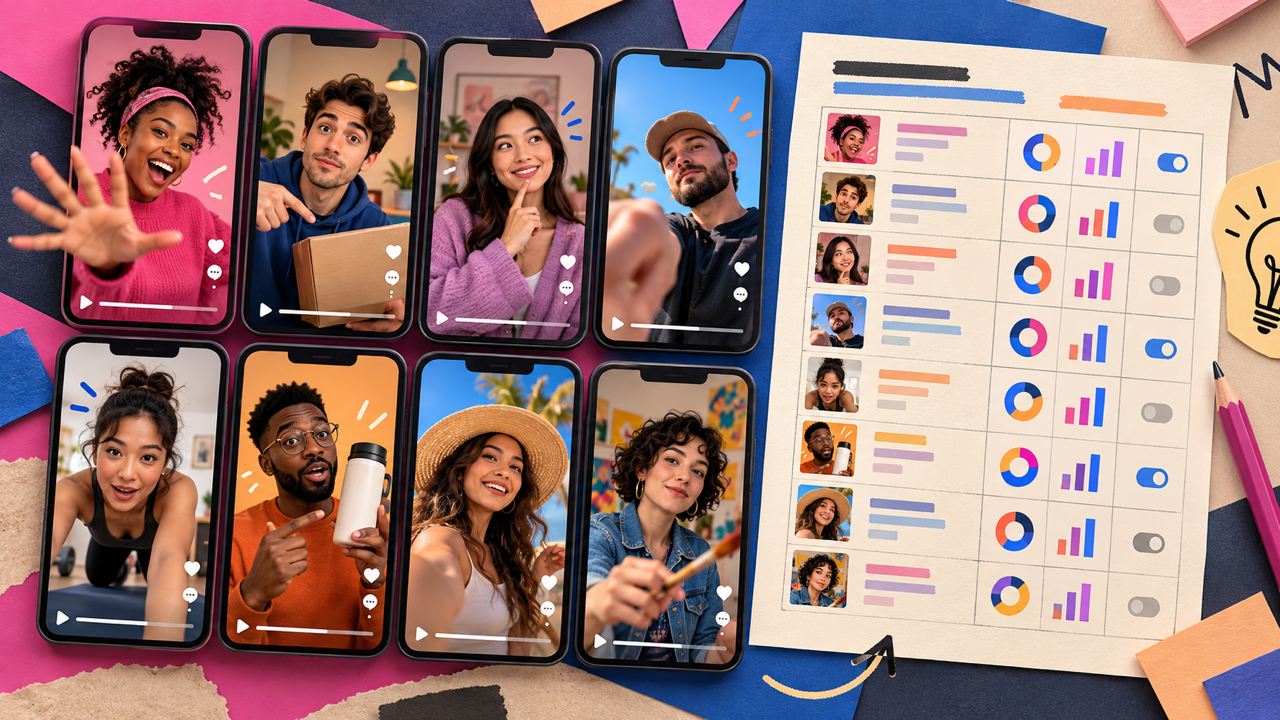
A workable rhythm is to turn the content calendar into a list of short scene prompts. VerseIn's social media video generator is built around this: describe one scene, choose a model for that post and an aspect ratio, and get back a short vertical clip. Each take is saved to the library, where you can trim it, and short clips can be joined into longer posts.
A few habits keep prompts usable:
- One scene per prompt. If a post needs three beats, write three prompts and join the clips.
- Lead with subject and action. Who or what is on screen, what they do, and where.
- Name the mood and light. "Warm morning light in a small kitchen" gives the model more than "nice kitchen."
- Note the model. Since you choose a model per post, record which one worked for each format.
Here's a hypothetical example of part of a week:
| Post slot | Scene description (example) | Ratio |
|---|---|---|
| Monday tip | A barista pours latte art in close-up, steam rising, soft window light | 9:16 |
| Wednesday trend | A golden retriever in sunglasses walks past a row of beach umbrellas | 9:16 |
| Friday tease | A sealed box on a wooden table opens on its own, revealing a glowing mug | 9:16, plus square |
Writing the whole week in one sitting means the batch can be generated together and reviewed together.
Decide aspect ratios before you generate
Choosing the ratio up front saves rework. The social video generator defaults to 9:16 for Reels, TikTok and Shorts, and also offers square and wide.
If a clip will run in more than one placement, plan for it early. VerseIn's video generator outputs 9:16, 1:1, 4:5 and 16:9, with reframe built in. For paid social, Marketing Studio resizes one master cut into each of those four placements and can re-run a template with a different hook, voice or opening frame.
A simple rule: generate in the ratio where most views will happen, then reframe for the rest. Check each reframed version by eye, since text and faces near the edges are the first to get cut.
Turn templates and characters into team conventions
Consistency across many posts comes from shared habits. VerseIn's templates library has tabs such as Trending, Dance, Festival, Funny, UGC, Unboxing and Tutorial, and each template follows three steps: "Select this template", "Upload your photo", "Generate and post." Agree on a short list of go-to templates for recurring slots, like a weekly unboxing.
The AI character generator lets you "create a character once, then bring it into any image or video" by calling it with @name in a prompt. Its short background story works as a reference "for yourself and for anyone working on the same project." The voice-over tool lets you save and reuse voices. If the voice belongs to a real person, get their OK before you clone it; the voice-over page makes that a condition.
Keep these choices in a shared doc: templates, the voice, a few prompt phrases that match your look, and for each character its reference photos, name and background story. Saved characters and voices sit in each person's own library, so every member sets up the same character from that doc. More on this in how to keep AI videos on-brand across a team.
Plan captions for sound-off viewing
A clip should still make sense when it plays without sound. AI Captions states the goal: "Make your video understandable with the sound off."
The route depends on the clip:
- Clips with a voice-over or speech. AI Captions turns the speech into a timestamped track you can edit and style, then exports SRT, TXT or a separate captioned video. A social lead can approve the words once and burn the final version from that approved copy, while the original clip stays as it was.
- Clips with no speech. A scene-based clip may have nothing to transcribe. The social video generator's FAQ suggests adding music and captions in each platform's own editor.
Either way, keep text away from the frame edges, since reframing crops there first.
Review every clip before it posts
AI clips are drafts until someone checks them.
A short checklist covers the usual problems:
- Likeness. Every real face you upload belongs to someone who said yes to appearing.
- Text and logos. Check on-screen words, labels and logos.
- Captions. Proofread names, product terms and line breaks.
- AI labels. Follow each platform's current rules for AI-generated content.
- Fit. Does the clip match its slot, ratio and brand notes?
Our guide to setting up an AI content review process goes deeper.
Why concurrency matters once batches grow
Concurrency is how many generations can run at the same time, and it shapes how long a batch takes. On VerseIn's pricing page, the plan cards list 4 concurrent videos on Pro, 6 on Ultra and 8 on Max.
Say one creator on Pro, which lists 4 concurrent videos, sends in twelve clips for the week: the first four start right away and the other eight line up behind them. That's fine for a few posts, but slow when a week of content plus variants lands on one day.
On any plan, jobs on the video generator keep running after you close the tab. Every run shows its credit cost before you commit, and a run that errors out, times out or trips a safety check refunds itself. See concurrent generations and priority queues for more.
Where VerseIn Teams fits for a social team
Before Teams, each creator is on their own Pro, Ultra or Max plan. When several of them need one budget, shared model rules and more room in the queue, the Teams & Business plan puts each person's own account into one team. Its card shows "Let's Talk" for price and "Custom Credits / Seat / Month." For a social team, these listed items stand out:
- "Custom concurrent generations with priority queue" for big weekly batches.
- "Unlimited members", so every writer and reviewer can join the team with their own account.
- "Centralized admin control with per-user credit usage and permissions" and "Credit limit controls help your projects stay under budget" for campaign budgets.
- "Restrict workspace members to specific models" for an approved model list.
The plan also lists "Volume based discounts", "Premium 24/7 customer support" and "Early access to advanced AI features." It comes with generous discounts and premium benefits; the quote spells out the details. To get a quote, use Contact Us on the pricing page or email [email protected] with the subject "VerseIn Teams Plan Inquiry," and raise any question the card leaves open in that message. To compare plans, see VerseIn Teams vs Pro, Ultra and Max.
FAQ
Do we need the Teams plan to start?
No. Each creator can start on their own Pro, Ultra or Max plan; all three list 4K video export, watermark-free export, access to all premium models and priority support. Teams is worth asking about once you want those accounts in one team with budget limits, model rules or more concurrency.
Can I add captions inside VerseIn?
Yes, for clips with speech. AI Captions makes an editable caption track and exports SRT, TXT or a captioned video. For clips without speech, add text in a platform's own editor.
Can we post these videos on our brand accounts?
Paid plans allow commercial use under VerseIn's terms of service, and they export without a watermark.
Turn a scene idea into a vertical video
Describe a scene, pick a model and an aspect ratio, and get a short clip you can post the same day.