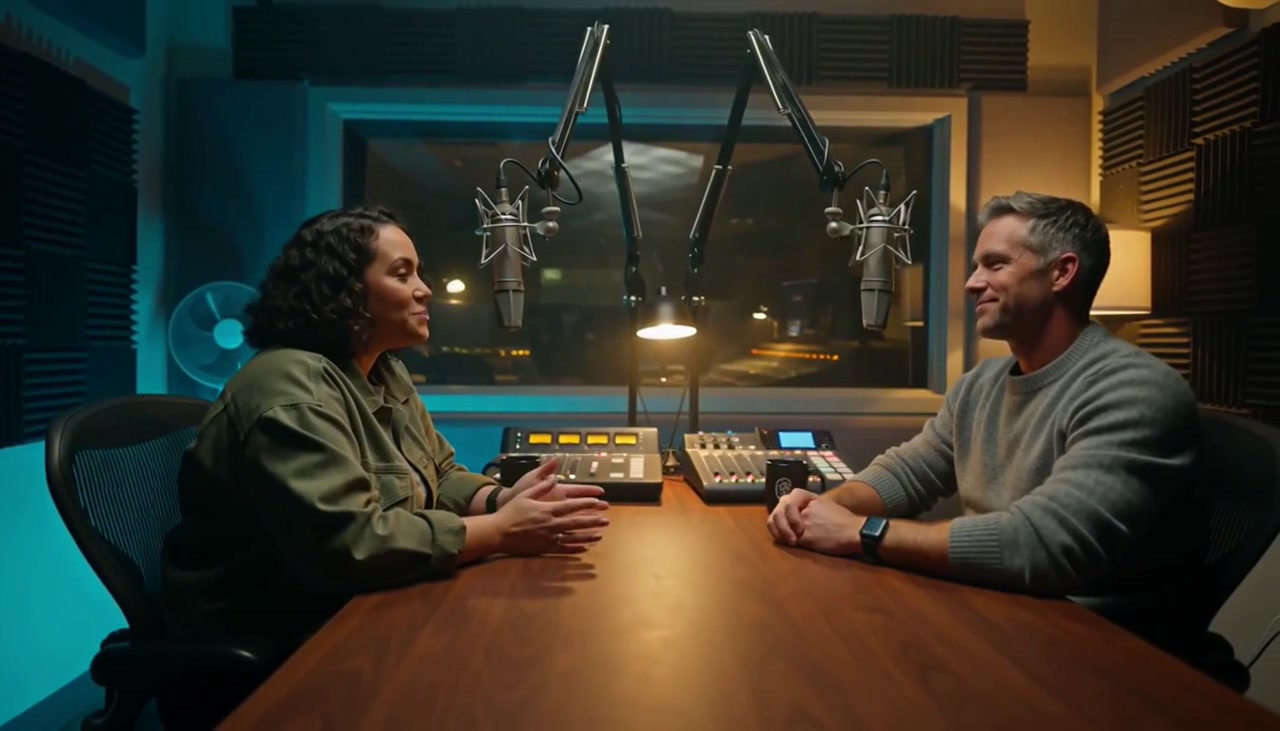
How to Make UGC Video Ads with AI (No Creators Needed)
Versein Team · Updated
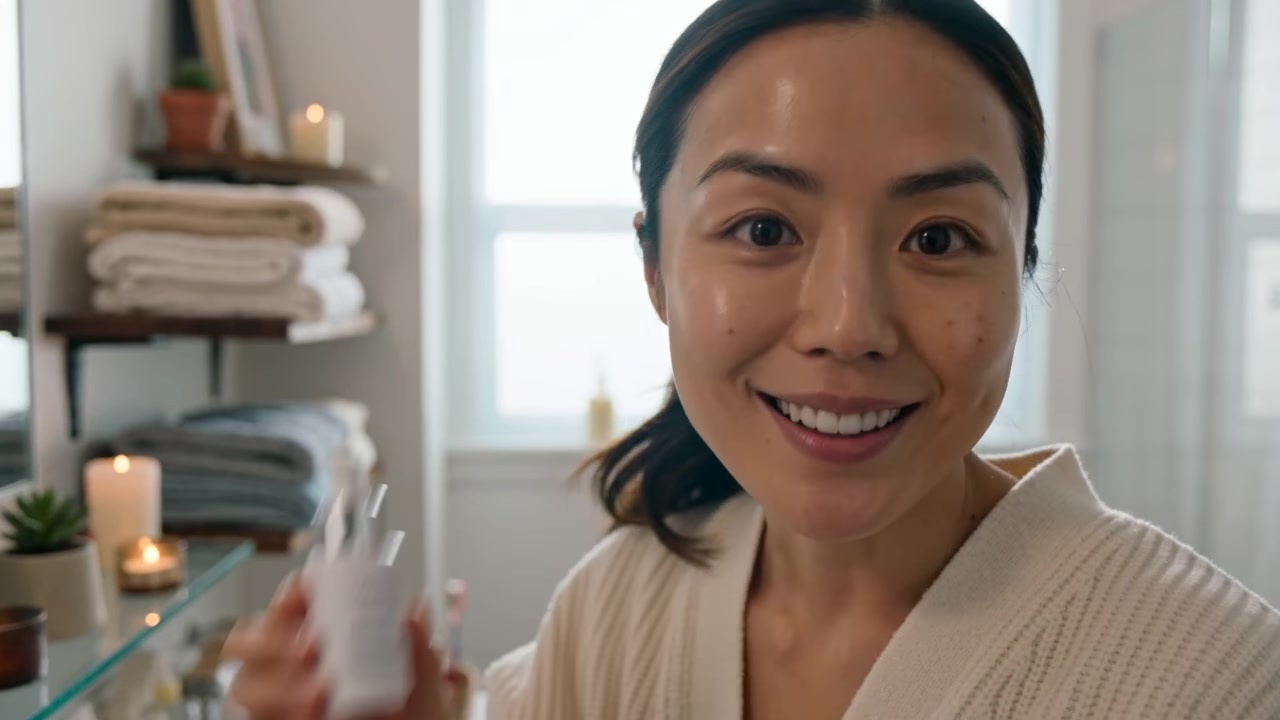
You can make UGC-style video ads with AI by giving a tool three things: your product, a presenter (an avatar), and a short script of what that person should say. With the AI UGC Ad Generator in VerseIn's Marketing Studio, you add the product and avatar, choose how the ad opens and where it takes place, then generate several versions to compare. This guide walks through each step, plus hook ideas, a simple testing method, and what to check on disclosure and likeness.
Key Takeaways
- A UGC-style ad works because it looks like content: one person, close to camera, talking plainly about one product.
- The workflow has three steps: add a product and an avatar, choose a hook and a setting, then write the prompt and generate.
- The hook (the first seconds) matters most, so test hooks before anything else.
- Label realistic AI-generated content where platforms ask for it, and only upload a real person's photo as an avatar if you have the rights to their likeness.
What is a UGC-style video ad?
A UGC-style ad is a short video that looks like something a customer or creator posted, not a polished commercial. UGC stands for user-generated content. The classic format is one person holding the product, looking into the camera and explaining why they use it.
These ads work because they look like content rather than ads. If you want people to stop scrolling, have your presenter speak to the viewer directly, the way a friend would. Keep the format simple: one presenter, one product, one clear point.
The hard part has always been production. Finding creators, shipping products, waiting for footage and paying for reshoots slow teams down. With AI, you create the presenter and the scene yourself, then make several versions to find what works. A vague script still makes a weak ad, though, so hold it to the standard you'd give a real creator.
What you need before you start
You need very little to make your first ad:
- A product photo. A clear picture with the label readable. If you don't have one, you can describe the product and generate it instead.
- An avatar. Upload a photo of a person or describe the person you want. Only upload a real person's photo if you have their permission to use their likeness.
- One benefit to talk about. Pick a single, specific claim, such as "keeps skin hydrated all day" or "fits in a carry-on."
- A rough script. Two or three lines of what the presenter should say. You can refine it later.
- A VerseIn account. Start on the VerseIn web app or use the iOS and Android apps. New accounts get free sign-up credits.
No product video yet? Start with how to make a product video from one photo with AI.
Step 1: Add a product and an avatar
Goal: your product and presenter are saved and ready to use in any ad.
Open Marketing Studio and start with the two building blocks of every UGC ad.
- Add your product. Upload a product photo, or describe the product and generate it.
- Add an avatar. Upload a photo of a person, or describe the presenter you want.
- Check both before moving on. The product should look like your real product, and the avatar should fit your audience.
Both the product and the avatar are saved as reusable assets. That pays off later: you can reuse the same product and avatar across many ads, so when one version beats another, you know which change caused it, as long as you change one thing at a time.
Step 2: Choose a hook and a setting
Goal: you know how your ad opens and where it takes place.
The hook decides how the ad opens in the first seconds. The setting decides where the scene happens. Both are optional, so you can skip them and describe everything in your prompt instead.
- Pick a hook that fits your message (see the hook ideas below).
- Pick a setting where your product would naturally be used. For example, you might choose a kitchen for a cooking product or a bathroom mirror for skincare.
- If you'd rather not build from scratch, start from a ready-made template.
Check that the hook and setting both support the single benefit you picked. If the setting distracts from the product, choose a plainer one.
Step 3: Write the prompt and generate
Goal: you have several ad versions side by side, ready to compare.
The prompt tells the presenter what to do and say. Keep it short and specific.
- Mention your product and avatar with @ in the prompt so the tool knows which assets to use.
- Write what the presenter should do or say. For example: "@Avatar holds @Product up to the camera, says her skin felt dry every winter until she switched, then taps the bottle and smiles."
- Choose the aspect ratio and duration. Pick the aspect ratio of the placement you are buying: for example, vertical for Reels, TikTok and Shorts, square for many feed placements.
- Generate a few versions. You'll see the total credit cost before you confirm each one.
- Compare the versions in your generation history.
A version is worth testing when the product is clearly visible, the presenter's words match your script, and the opening grabs attention. If a generation fails because of a processing error, a timeout or a content safety check, the credits are returned automatically.
Want to go straight to it? Open the AI UGC Ad Generator and follow the same three steps.
Hook ideas for UGC video ads
The hook decides almost everything in a UGC ad. If the first seconds don't hold attention, nothing else gets seen. VerseIn's UGC ad guide notes that openings that name a problem or show a surprise tend to hold attention.
Here are four common patterns to try. Treat them as starting points to test, not guaranteed winners.
| Hook pattern | How it opens | Example line |
|---|---|---|
| Problem | Names a pain the viewer already feels | "My skin was so dry this winter it hurt to smile." |
| Surprise | Shows or says something unexpected | "I put this on my hands, not my face, and here's why." |
| Demo-first | Starts with the product already working | Presenter pumps the serum and rubs it in before saying a word. |
| Before/after | Contrasts how things were and how they are now | "Last month vs. this month. Same lighting, same mirror." |
Whatever hook you use, keep the message to one specific benefit and pair it with a shot that proves it. If you say a moisturizer absorbs fast, show it absorbing. If you say a bag fits a laptop, show the laptop going in.
Be careful with before/after hooks. Only show results your product can honestly deliver, and check your ad platform's rules on before/after claims for your product category.
How to test UGC ad variations
The fastest way to learn what works is to change one thing at a time. If you change the hook, the avatar and the setting all at once, you won't know which change made the difference.
Because your product and avatar are saved, you can hold most things steady and swap a single element. A simple order to follow:
- Test hooks first. Keep the same avatar, setting and script body. Make several versions that differ only in the opening.
- Test the presenter next. Take the best hook and try it with a different avatar.
- Move on to the setting. Same hook, same avatar, new location.
- Finish with the benefit. Try a different single claim with your winning setup.
How to pick a winner
Choose one main signal per test before you launch it. For hook tests, look at early hold or watch-through, since the hook's job is to keep people watching. For later tests, judge on click-through or cost per result. Give each version a similar budget and run time before you call a winner, so the comparison is fair.
This approach also helps with ad fatigue. When an ad starts to wear out, you can refresh it with a new version, even weekly, without booking another shoot. The same method works for new markets (same product and avatar, prompt in another language or a local setting) and for checking interest in an early product before you pay for a full production.
Disclosure and likeness: what to check
Realistic AI-generated video often needs a label. YouTube and TikTok ask creators to disclose it, so check the current rules before you publish.
- YouTube asks creators to disclose content that is realistic and has been altered or made with synthetic media, according to the YouTube Official Blog (March 2024).
- TikTok asks creators to label realistic AI-generated content and launched a creator label for it, according to the TikTok Newsroom (September 2023).
These policies cover posted content. Paid ads can have their own rules, so check each ad platform's current advertising policy before you launch a campaign.
Likeness is the second thing to get right. If you upload a photo of a real person as an avatar, get the person's permission to use their likeness in ads. That includes employees, friends and paid creators. If you don't have that permission, describe a person and generate the avatar instead.
Finally, only claim what your product actually does, just as you would with a human creator.
The presenter image at the top of this post is an AI-generated example.
FAQ
Do I need a real creator to make a UGC-style ad?
No. You can describe a presenter and generate an avatar, or upload a photo of a person you have the rights to use. The avatar is saved so you can reuse it across ads.
Can I make UGC ads without a product photo?
Yes. You can describe the product and generate it. A real, clear product photo is still the best choice when you have one, because viewers expect the ad to match what they receive.
Do I have to label AI-generated UGC ads?
Often, yes. YouTube and TikTok both ask creators to disclose realistic AI-generated content. Ad platforms may have separate rules, so check each platform's current policy before you publish.
How much does it cost to make an AI UGC ad?
Each generation uses credits, and the amount depends on the tool, model and settings. You'll always see the total cost before you confirm, and new accounts get free sign-up credits. Paid plans export without a watermark. See the pricing page for current plans.
Make your first UGC-style video ad
Add your product, pick an avatar and a hook, and generate several ad versions to compare.