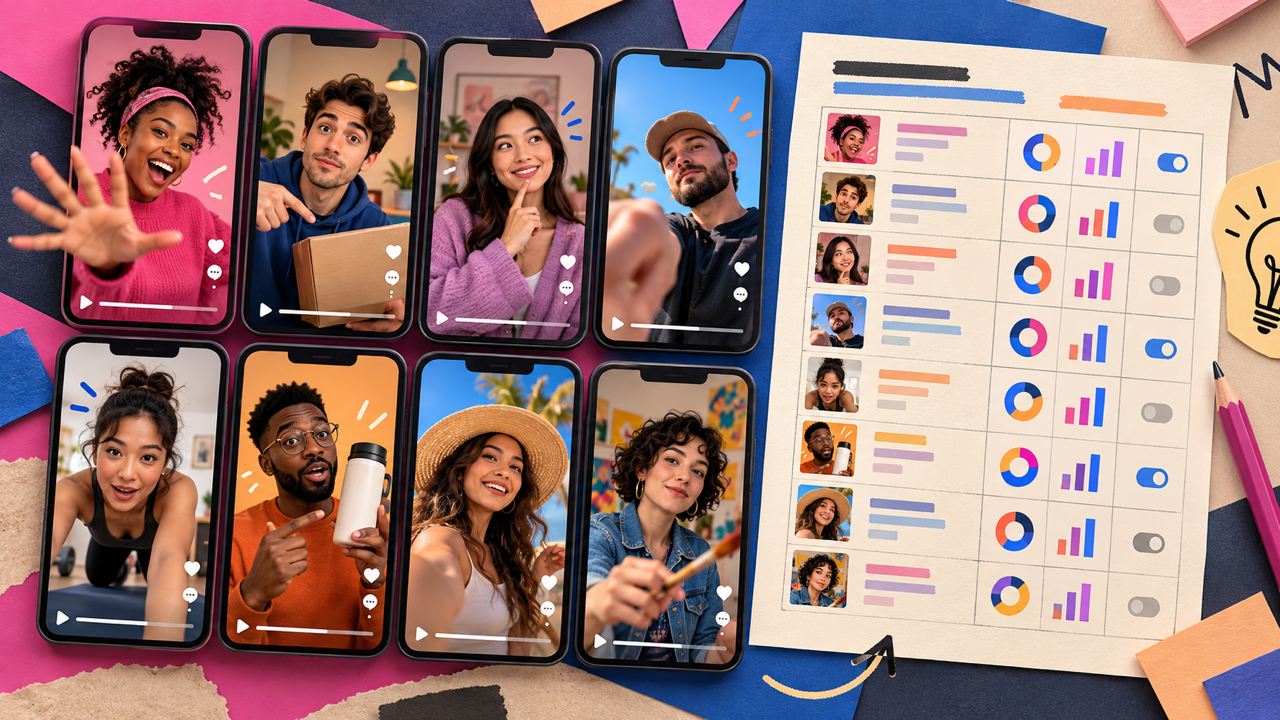
How Global Marketing Teams Can Localize Video with AI
Versein Team · Updated
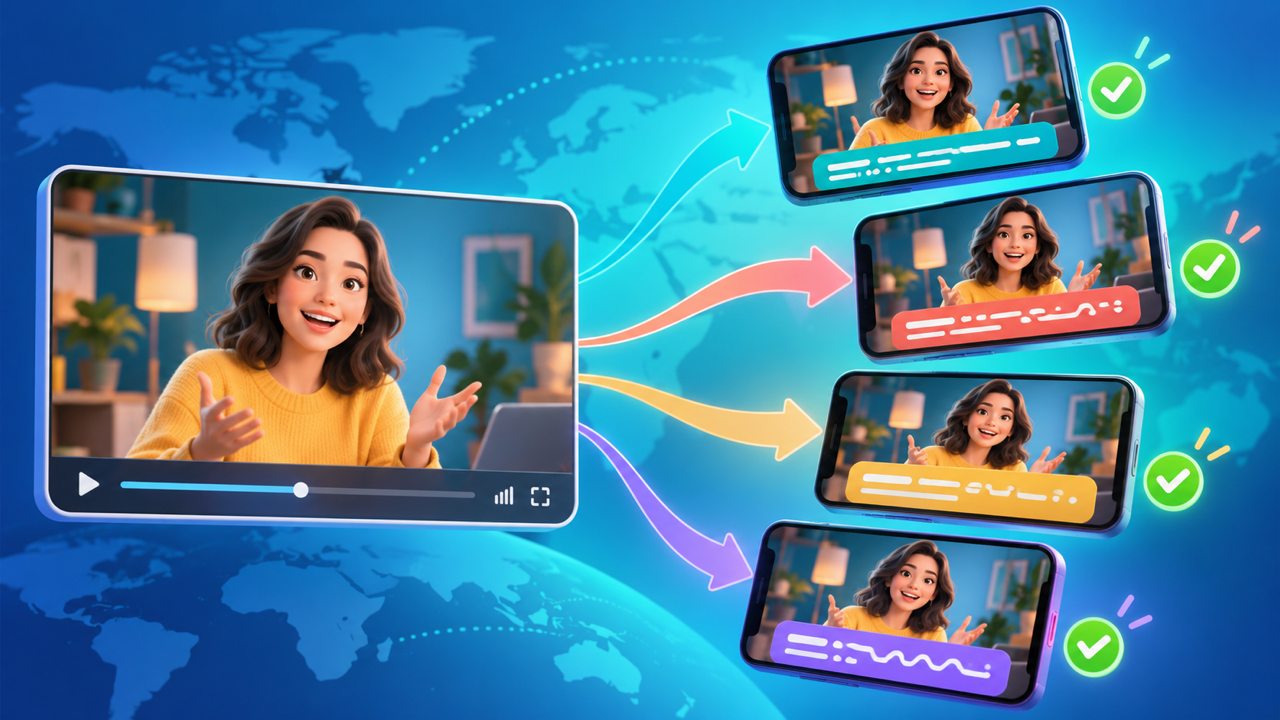
Global marketing teams can localize video with AI by starting from one clean master cut, choosing dubbing, a new voice-over or captions for each market, and having a native speaker approve every version before it goes live. AI handles the transcription, translation and re-voicing. People still own the calls on tone, product terms and what a local audience will accept.
Key Takeaways
- Match the method to the footage: dub people talking to camera, regenerate the narration for product cuts without a visible speaker, and add captions for viewers who watch on mute.
- A master cut with clear speech, quiet music and editable on-screen text is much easier to localize than a finished, flattened edit.
- Treat every machine translation as a draft. A native speaker should check meaning, names, numbers, claims and tone before anything is published.
- Agree on owners, a glossary and a budget per market before you scale up. The VerseIn Teams & Business plan lists credit limit controls and per-user usage tracking that fit this kind of setup.
Why localization turns into a volume problem
Every new market multiplies your output. For example, one launch video in five languages and three aspect ratios is already fifteen files to make, check and publish, before any ad variants.
Choose dubbing, voice-over or captions for each video
| Video type | Usual approach | VerseIn tool |
|---|---|---|
| Presenter talking to camera | Dub, with lip sync on | AI Video Dubbing |
| Interview or panel with several speakers | Dub, with the speaker count set | AI Video Dubbing |
| Product footage with narration and no visible speaker | Regenerate the narration in the target language | Voice-over or Marketing Studio |
| Social clip that most people watch with the sound off | Captions in the target language | AI Captions, run on the dubbed version |
| Ad you want to test in a new market | A localized variant of the same cut | Marketing Studio |
Lip sync is an on/off option on the dubbing page. A reasonable rule: turn it on when the speaker's mouth is clear in the frame, and off when faces are small or turned away.
Prepare a master cut that travels well
- Keep the speech clean. The dubbing tool needs spoken audio and rejects silent clips. One speaker at a time and low background music give the transcription the best chance.
- Hold the music back. One music bed can serve every language. Send a speech-forward mix to the AI step and keep the original music file ready to lay under each localized cut.
- Keep on-screen text editable. The dubbing page lists a dubbed video and a subtitle file as the output, not translated graphics, so plan titles, prices and calls to action as separate edits per market.
- Leave room for longer lines. Translations often run longer or shorter than the original. The dubbing page lists an adaptive pacing option, but tight cuts with no pauses still leave little room.
- Start a glossary. List brand names, product names and taglines that should stay in English, plus approved translations for the rest.
A step-by-step localization workflow
1. Generate the language versions
Start with a one-line brief per video: language, method, aspect ratios and reviewer. Then upload the master cut to AI Video Dubbing and pick your target languages. The page says you can choose several per upload, though it doesn't list the languages or the maximum, so check inside the tool. You get one dubbed video per language plus a downloadable subtitle file for proofreading. The total cost shows before you confirm, and any language that fails is refunded.
For narrated product cuts, Voice-over can regenerate the narration in another language, and it gives you several reads to choose from. In Marketing Studio, a localized variant leaves your footage and edit as they are and changes the language of the voice-over. Reframe turns one master into 9:16, 1:1, 4:5 and 16:9.
2. Fix speech in the picture where it matters
If a dubbed close-up still looks off, the AI Lip Sync tool takes a video with a clear face plus an audio track, such as a translated one. Try each language track and keep the take that matches best.
3. Add captions in each language
Run AI Captions on each dubbed version, set the language (or auto-detect), and check that the target language is supported. It exports SRT subtitles, a TXT transcript and a new captioned video, leaving the source unchanged. Lock each market's approved caption text before you burn it in. The page's "Campaign and client review" section covers this, and saves use revision checks so a newer copy from another session isn't overwritten.
What native-speaker reviewers should check
Nothing ships until a fluent reviewer for that market approves it. Send your reviewer the subtitle file or TXT transcript along with the video, so they can read at their own pace. Ask them to check:
- Meaning. Does each line say what the original meant, not just what it literally said?
- Names and terms. Are brand and product names handled the way the glossary says?
- Numbers. Prices, currencies, dates, units and phone numbers should match the local market.
- Claims. A product claim that works in one country may need softer wording, or a different claim altogether, in another.
- Tone. Formal or casual address, humor and idioms often need a rewrite.
- Sync and sound. Does the voice fit the speaker, and do the captions match the dubbed audio?
Keep the reviewer's corrections in the glossary so the next video starts from a better baseline. For a broader checklist that also covers labels and likeness, see how to set up an AI content review process for your team.
Consent for voices and faces
Dubbing a real presenter into languages they don't speak puts new words in their mouth. VerseIn's lip sync page warns against making a real person appear to say something they haven't agreed to, and the voice-over page says cloning anyone's voice requires that person's agreement. As a recommendation, get written consent from presenters that covers each language and market you plan to publish in, and keep it with the project files.
Running localization across a team
Most of the coordination is process: one glossary, saved voices, saved characters for recurring presenters, and a file-naming pattern such as product, market and ratio. Our guide to keeping AI videos on-brand across a team goes deeper on shared conventions.
When several regional marketers generate at once, the VerseIn Teams & Business plan adds controls that fit this work. The plan lists:
- "Unlimited members", so each regional marketer has their own VerseIn account in the same team.
- "Credit limit controls help your projects stay under budget", for capping spend per market or launch (more on sharing credits).
- "Centralized admin control with per-user credit usage and permissions", so you can see each marketer's credit usage.
- "Restrict workspace members to specific models", if you've approved certain models for brand work.
- "Custom concurrent generations with priority queue", relevant when many language versions run at once (what that means).
- "Premium 24/7 customer support", handy across time zones.
The card also lists "Volume based discounts" and "Early access to advanced AI features". To get a quote, email [email protected] with the subject "VerseIn Teams Plan Inquiry", or use Contact Us on the pricing page. That's also the place to ask anything the card doesn't cover, such as how outside reviewers fit in.
FAQ
Should we dub or just add subtitles?
Decide per market and platform. A dub suits product demos and presenter videos that people follow by ear, and markets where your audience expects to hear its own language. On feeds that autoplay without sound, captions may carry the message alone. For priority markets, shipping the dub with matching captions covers both habits.
What if our video has no speech?
The dubbing tool rejects silent clips. Instead, write a short script and generate narration in each language with Voice-over, then place it under the same cut.
Do native-speaker reviewers need a VerseIn account?
The Teams & Business card doesn't say how outside reviewers are handled. Reviewers can work from the exported SRT or TXT files and the finished videos. If you want reviewers inside your setup, ask the VerseIn team when you request a quote. For a full walkthrough of a single dub, see how to dub a video into another language with AI.
Dub one video into several languages
Upload a video with clear speech, choose your target languages and get a subtitle file your reviewers can proofread.